
How it works:- One can configure the multi-factor authentication for either the global level, the tenant level, or even for both, but separately, levels of the manager.
- A user as the option to select either email or and APP to authenticate.
- It should work with any Authentication APP from any phone, but it was tested with both the Authenticator and the OTP Auth apps on an Iphone SE 2020 phone and an Android phone.
- One can enable/disable the Multi-factor authentication and set the Start date for all users from the security page.
- Enabling the Multi-factor authentication from the security config doesn't actually enables the option for all user, it simply removes the option for a user to enable/disable it from their profile's/user's pages; One user can enable the multi-factor authentication from its profile's page or the user's page even if it was disabled in the Security's page, however, if it is enabled there, it will force every user to have it and not be able to disable it from its profile's/user's pages.
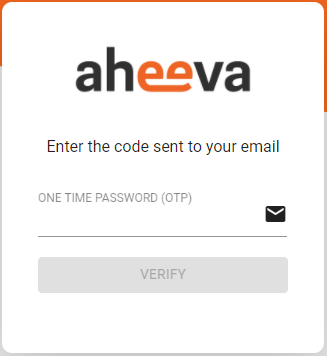
- Once enabled for a user, it will get prompted to enter the code it received by email.
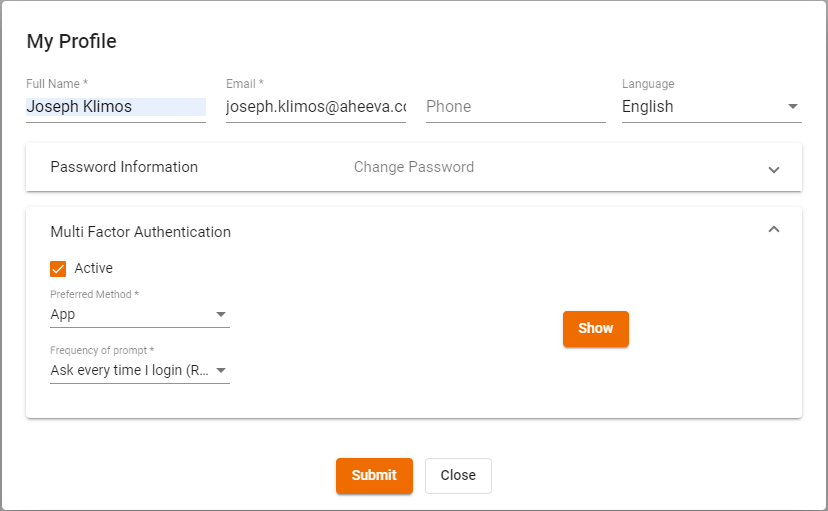
- Only after the first successful login of the user after having the multi-factor enabled for it, that it will be able to switch its preferred method of authentication and its frequency of prompt.
- The preferred method are either email or APP.
- The Frequency of prompt are either After every login, once a day or once a week.
How it looks:
The multi-factor authentication can be forced-enabled from the Security's page. From the user's and the profile's page it will look different and it will not be possible to disable/enable it anymore.

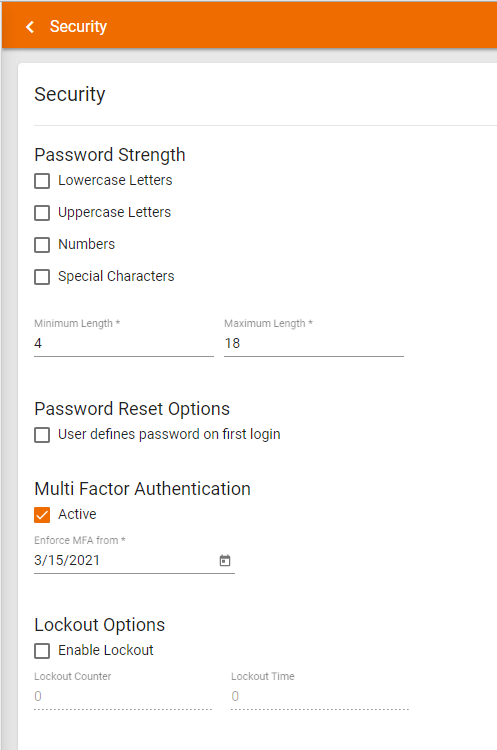
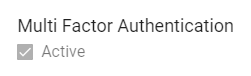
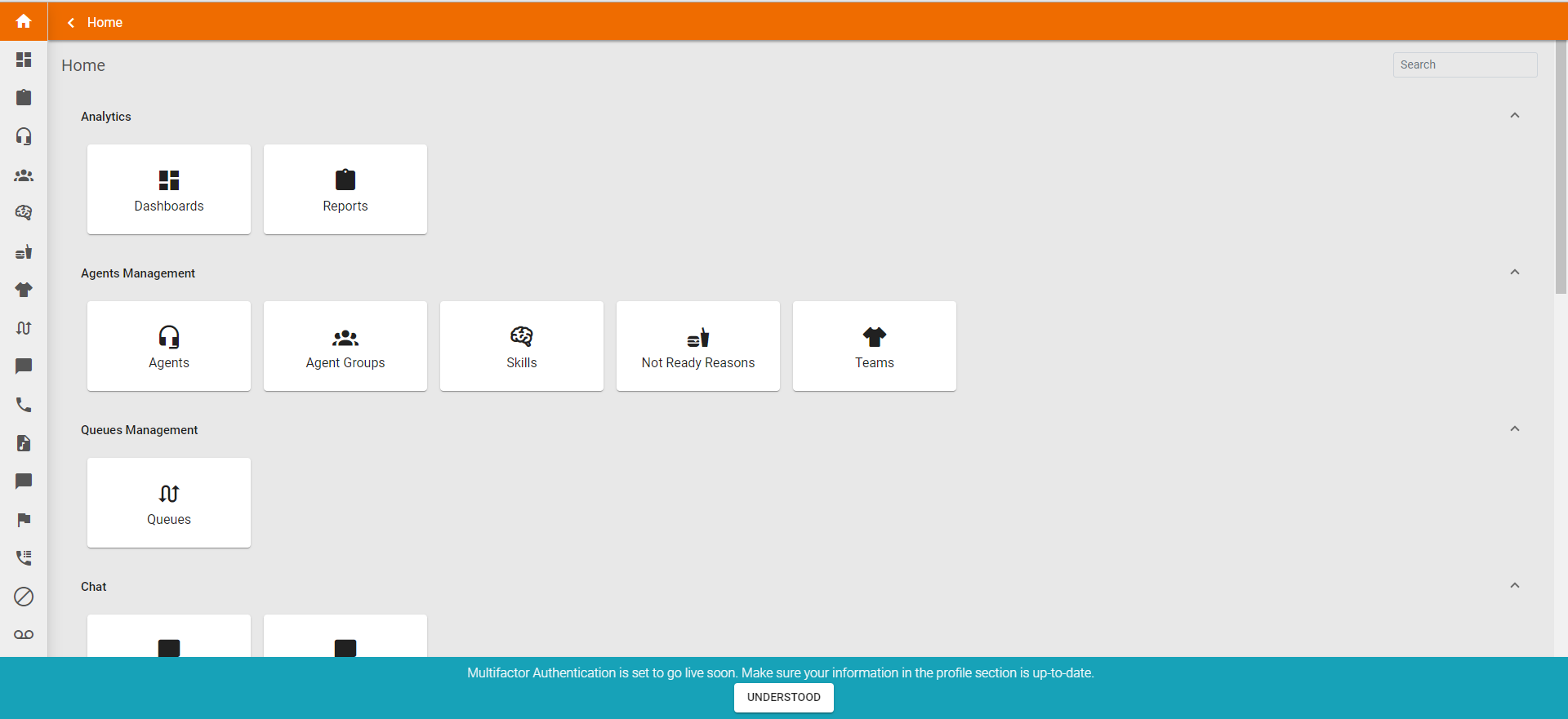
If the Multi-factor authentication gets enabled from the security's page with a starting date set to a future day, a user will receive this warning after login in until that day. The user can hide the warning by clicking the understood button.
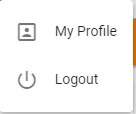
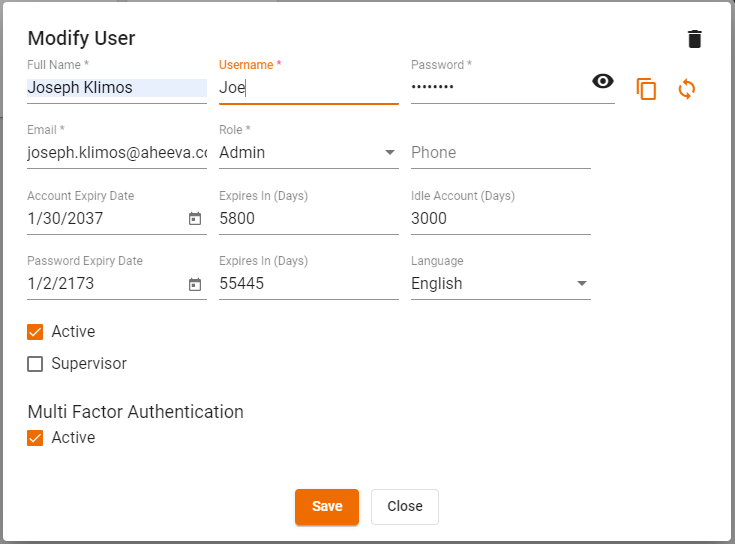
A user can enable the multi-factor authentication from either its profile's page or its user's page. The profile's page can be accessed by clicking on its name in the top-right corner of the manager. Only the logged in user has access to its own profile's page, while anyone can/cannot have access to another user's page. If it enabled/disabled in one place, it will be enabled in the other automatically.
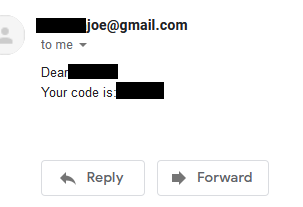
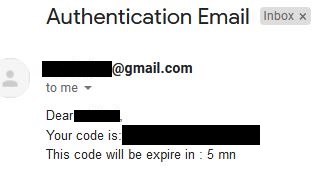
After enabling it and having a user log in, it will get prompt with this window on the first login of any user or for any user using that its preferred method is email. The user must enter a code to continue. The code is received by email and only expires if another code is sent later. If one user asks for multiple code at about the same time, only the last code is valid and may work.
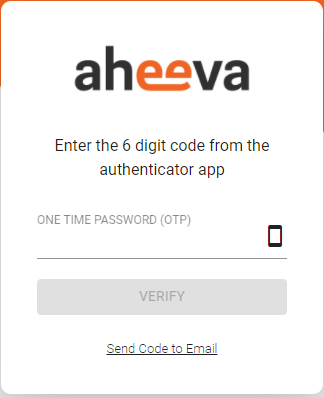
Whenever the APP get selected as the preferred method, it gets prompted with this instead.
Requirements:
- Aheevaccs version 8.0 or 8.1
A properly configured email sender:
File: /etc/aheevaccs/manager/servletConfig.properties
#email configuration
mail.host=smtp.gmail.com
mail.port=465
mail.username=aheeva@gmail.com
mail.password=password
mail.smtp.auth=false
mail.smtp.socketFactory.class=javax.net.ssl.SSLSocketFactory
mail.smtp.socketFactory.port=465
mail.debug=true
mail.smtp.starttls.enable=false
mail.fromemail=aheeva@gmail.com
How it works:- One can configure the multi-factor authentication for either the global level, the tenant level, or even for both, but separately, levels of the manager.
- A user as the option to select either email or and APP to authenticate.
- It should work with any Authentication APP from any phone, but it was tested with both the Authenticator and the OTP Auth apps on an Iphone SE 2020 phone and an Android phone.
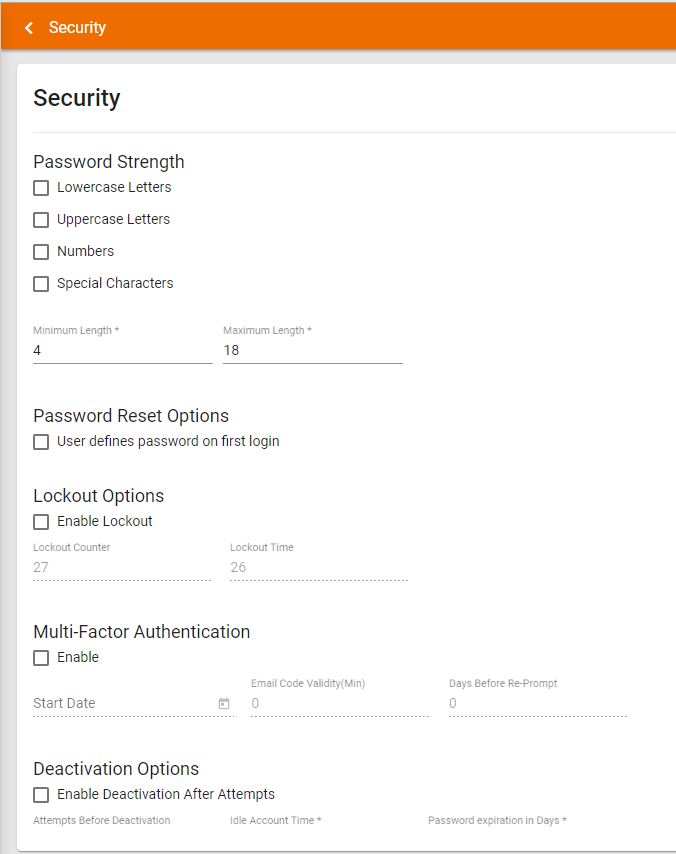
- One can enable/disable the Multi-factor authentication, set the Start date, set the time in minutes for an email validity code and the number of days for a re-prompt.
- One can disable the multi-factor authentication for any user after enabling it for everyone from the Security's page. It will enable that user to get re-prompt after logging in to select a new method of authentication.
- If a method of authentication was selected in the past, but the multi-factor authentication option got removed and re-added later on, the user will get prompted on the actual login screen and can either scan the bar code completely or ask for a code by email depending on what is selected for the user on the first login as the authentication method on the user's management page.
- One can change the way it want to authenticate from the user's management page for any user after enabling it for everyone from the Security's page and after actually selecting the authentication method after the login.
How it looks:
The multi-factor authentication can be configured from the Security's page.
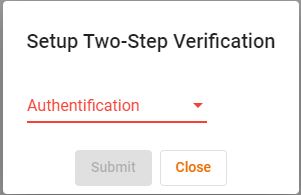
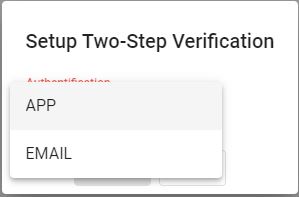
After enabling it and having a user log in, it will get prompt with this window. From this point it can ignore it for now by closing it and get re-asked the following time or it can select either the app or the email to authenticate.
Whenever the APP get selected, it gets prompted with the bar code to scan and get codes for.
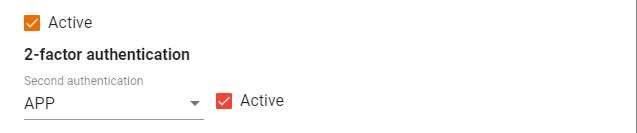
Once the multi-factor authentication option is enabled from the security config page, this new section appears for all user's management section.
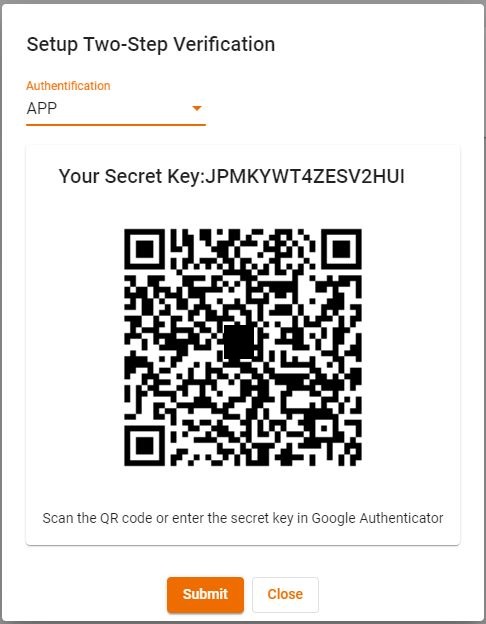
If the second authentication method is empty, while it is active, due to enabling, then disabling then re-enabling and then selecting the app method from the user's management's page, the user will see something like that.
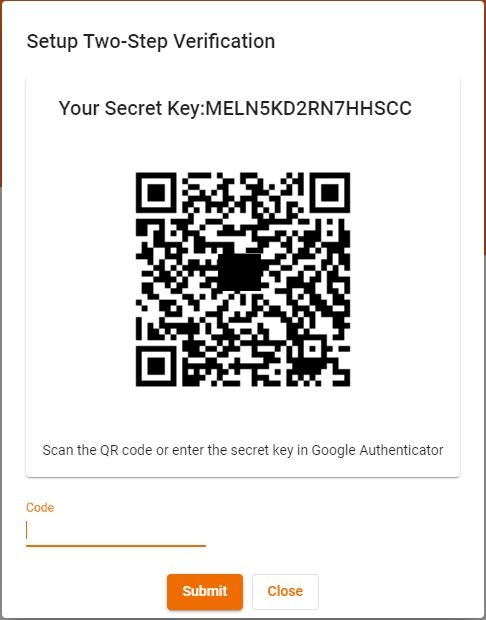
If the APP is selected after the first login, this box will appear on the login's page after logging in. The user must enter a code to continue.
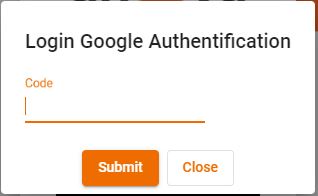
If the EMAIL is selected after the first login, this box will appear on the login's page after logging in. The user must enter a code to continue. The code is received by email and is valid only as long as the set email validity code value on the security's page. If one user asks for multiple code at about the same time, only the last code is valid and may work.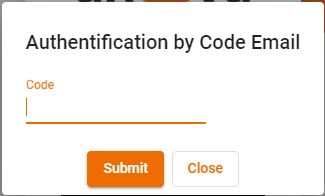
Comments
0 comments
Please sign in to leave a comment.