
The dashboard v8 is directly related to the statistics server v8.
For more information about the statistics server: https://aheeva.freshdesk.com/a/solutions/articles/9000195483
The stat server allows building custom real time dashboards with a friendly interface. The statistics server is responsible for feeding the dashboard with data bases on its REST api.
How it looks:One can access the dashboard under a specific tenant by clicking this icon.
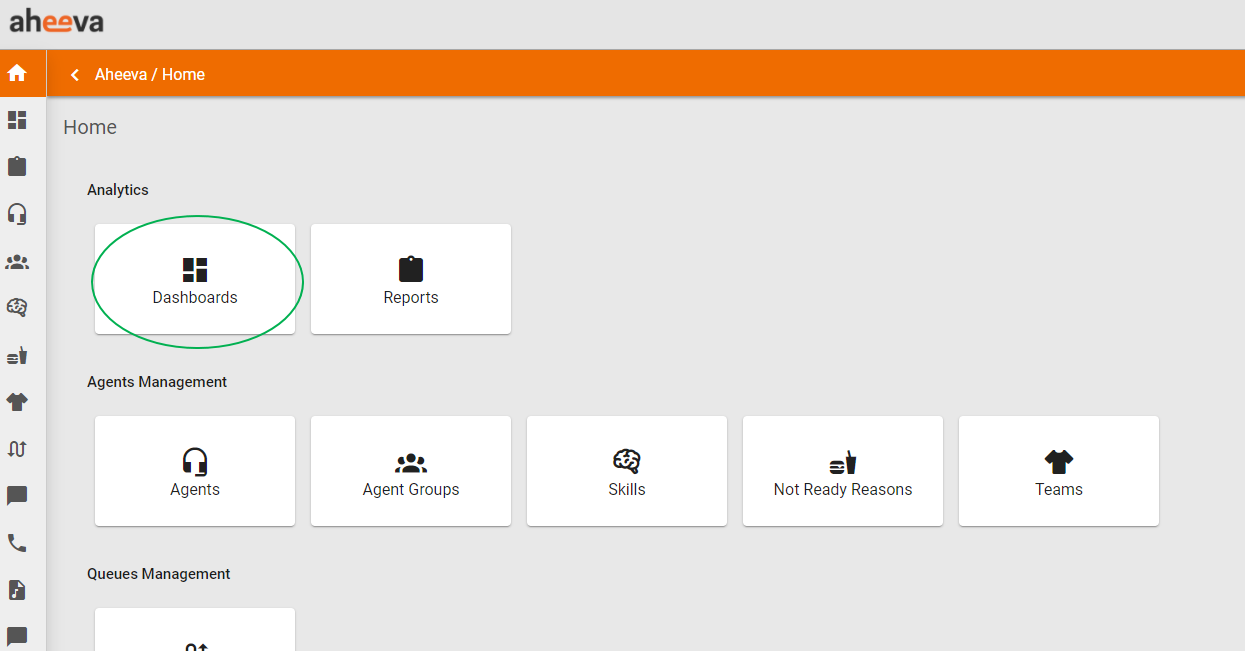
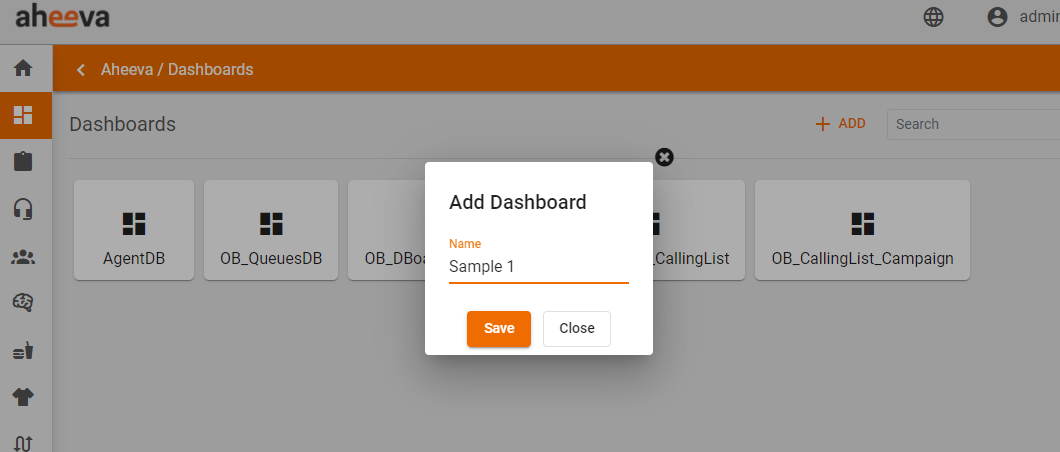
Once selected, you can either choose an existing dashboard or add a new one by clicking the Add button.
By default, when you open a dashboard, it is in view mode. In order to edit it, you need to switch to edit mode.
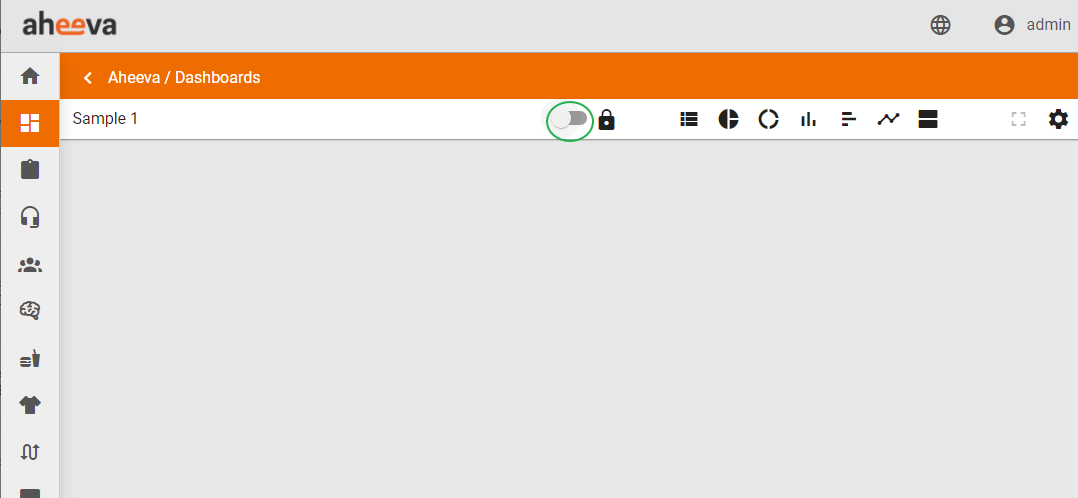
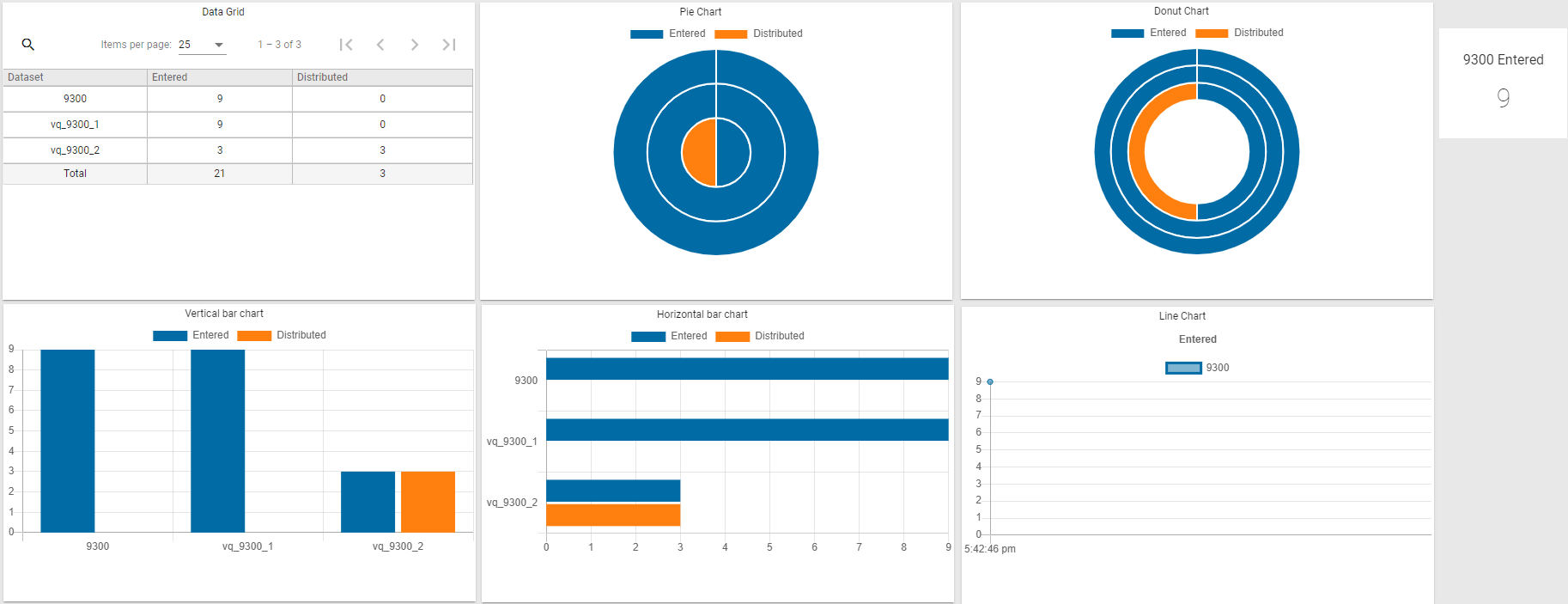
While in edit mode, one can add widgets. Here are the possible list of widgets, from left to right: Data grid, Pie chart, Donut chart, Vertical Bar chart, Horizontal bar chart, Line chart and Counters.

How it works:
General information:
There are 3 different types of statistics:
1. Infinite: Infinite consists of statistics that never reset. They might go and down, but never reset.
2. Non-overlapping: Non-overlapping consists of statistics that will reset after a set windows length. By default, that windows length is of 86400 seconds, which is the equivalent of 24 hours. It can be changed manually at any time.
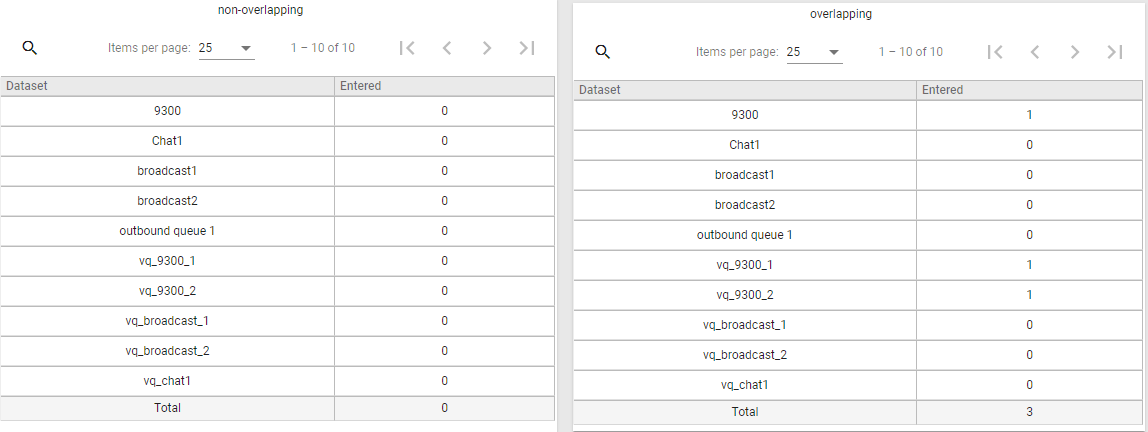
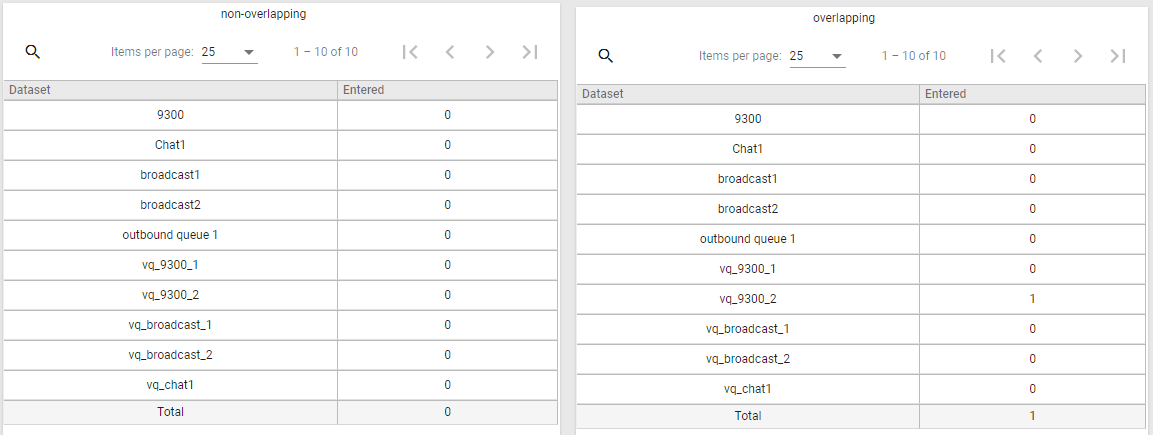
3 Overlapping: Just like non-overlapping statistics, overlapping consists of statistics that will reset after a set windows length. The different between non-overlapping and overlapping, is that the overlapping statistics have a frequency for them. How an overlapping statistic works, it the following. The set windows length is the amount of time that it will go back in time and get the history to get a result plus or minus the frequency time. For example: One sets a windows length of 60 minutes and a frequency of 5 minutes. This means that the result shown will be the last 60 minutes plus or minus 5 minutes, because the 60 minutes is divided by chunks of the frequency time and at, for example, 60 minutes and 1 second, it would have erased the first 5 minutes chunks that was 60 minutes ago to add a new one. For now, by default, the frequency is set to 600 seconds, which is 10 minutes, but it can be changed manually at any time and the lower the frequency, the more accurate the final results will be. For the most accurate information, change it to 1 to 5 seconds.
Example: A windows length of 180 seconds with a frequency of 5 seconds was reached. After the first 180 seconds a few 5 seconds chunk later, it shows the result in the second picture.
Entities and subsets:
By selecting an entity, one can see all values and available properties for that entity.
All entities contain available properties directly related to them, but some entities also contain subsets of available properties not directly related to them, but that have a link between them. Here is a list of them:
- Queues Entity: General, Service Level and Agent sets of properties.
- Social Queues Entity: General.
- Agents Entity: General, Social and Chat sets of properties.
- Agent Groups Entity: General.
- Teams Entity: General.
- Calling Lists Entity: General and Status sets of properties.
- Campaign Calling Lists Entity: General.
- Campaigns Entity: General.
Widgets:
Data Grid: One can select has many values from the left columns and has many available properties for a data grid. On view mode, one can change the number of rows per page, one change go to the previous, next, first or last page and one can sort the information by clicking on the columns name; one click sorts it from smaller to larger, from top to bottom, a second click sorts it from larger to smaller, from top to bottom, and a third click removes the sorting of that column. A total column is added on the last row showing the totals, where available for every column in the table.
Pie Chart: One can select has many values from the left columns and has many available properties for a pie chart. One can see the available headings on top of the chart. To see a specific section of the pie chart, one must hover over it. It creates a new circle for every value from the left column and that circle gets divided by the number of available properties, depending on the result and selection.
Donut Chart: One can select has many values from the left columns and has many available properties for every a donut chart. One can see the available headings on top of the chart. To see a specific section of the donut chart, one must hover over it. It creates a new circle for every value from the left column and that circle gets divided by the number of available properties, depending on the result and selection.
Vertical Bar Chart: One can select has many values from the left columns and has many available properties for a vertical bar chart. One can see the available headings on top of the chart. To see a specific section of the vertical bar chart, one must hover over it. It creates a new set of columns for every value from the left column selected. Every set of column will contain different columns for every available properties, depending on the results and selection.
Horizontal Bar Chart: One can select has many values from the left columns and has many available properties for an horizontal bar chart. One can see the available headings on top of the chart. To see a specific section of the Horizontal bar chart, one must hover over it. It creates a new set of columns for every value from the left column selected. Every set of column will contain different columns for every available properties, depending on the results and selection.
Line Chart: One can only select 1 value from the left column and only 1 available property for a line chart. One can see the available headings on top of the chart. To see a specific section of the Line chart, one must hover over it.
Counters: One can only select 1 value from the left column and only 1 available property for a counter. One can see the available headings on top of the counter.
Sorting: There are 2 ways to sort the columns while editing.
1. Select the available properties in order.
2. Select the available properties and go to the reorder columns section just below to drag and drop any column at any place on a horizontal line.

Alerts:
The alert section can be found while editing a widget at the bottom.
One can set alerts on specific fields for a widget. One can add has many alerts has they want.
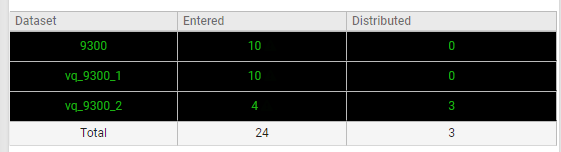
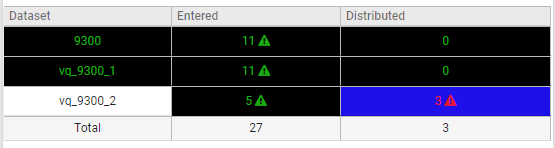
If an alert gets triggered, the widget area will change color and have a flashing on and off exclamation point warning sign.
If one alert only gets triggered, the affected lines will change color to the set background color, while if multiple alerts are set and triggered, it will highlight areas individually.
1 alert triggered:

Will result in this:
While multiple alerts are triggered, it will result into this:
Comments
0 comments
Please sign in to leave a comment.