
Just like the new Aheeva Manager, the new Inbound Routing Script uses the latest stable version of Angular, Angular 10, while also using a library known as Svg.js.
With the Aheevaccs 8 version, the Inbound Routing Script section has been completely redone; Both the look and its structure.
Now every application is separate. Meaning that, for example, the answer is now its own entity, while before we used to have something called an Execute box and it would possibly contain multiple applications at the same time.
The Call routing script is also on a different page from the Chat routing script.
How it looks:
1. To find the Routing script sections, one must first login into its manager and enter one of its tenant: https://ip:9443/#
2. The pages can be found with by clicking the following icons:
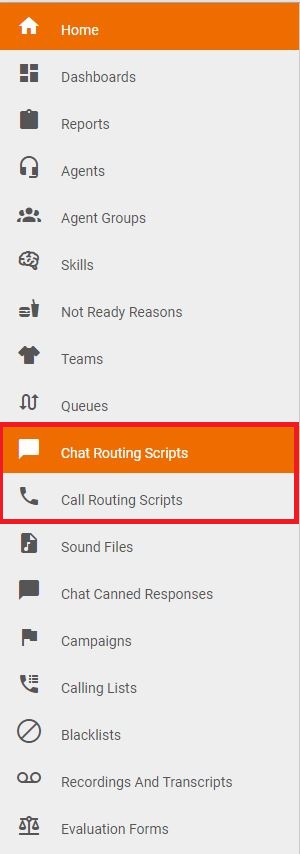
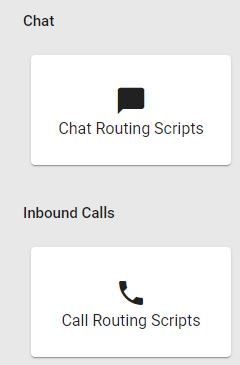
3. After opening the page, it will look like that. One is now able to create a new Ivr, by clicking on the add button from the top-right corner of the section, or to edit an already existing IVR by clicking on it.

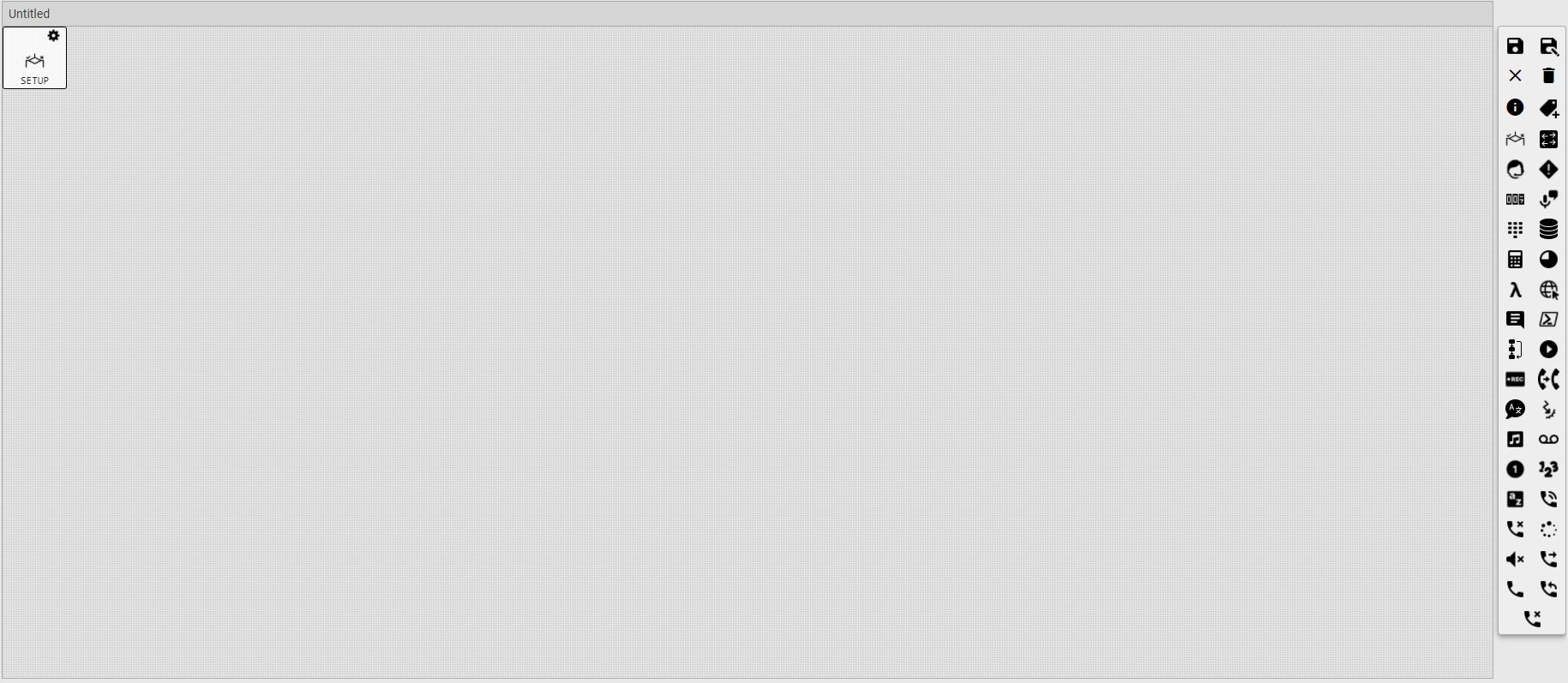
4. Once clicked, the page looks like the following:
How it works:
By default, the page will only contain a condition box at the beginning, because most routing scripts start with one.
Otherwise, one can create all of the following boxes for the call routing scripts and the chat routing scripts sections.
Call (From top to bottom and then left to right):
- Save: On clicked, it validates part of the routing script, and if good, it prompts with the following box. One must enter a Name to save. By default, the priority is 1 and the active box is unchecked. 
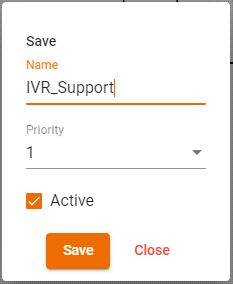
- Save As: Just like the save button, on clicked, it validates part of the routing script, and if good, it prompts with the following box. One must enter a Name to save. By default, the priority is 1 and the active box is unchecked.

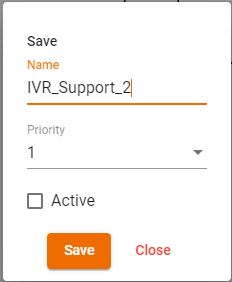
- Clear: Clicking the clear button removes everything from the IVR.

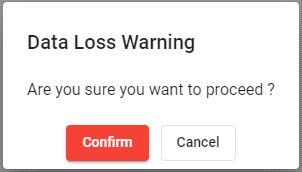
- Delete: Clicking the button deletes the actual routing script completely. It comes with a confirmation message, just in case.

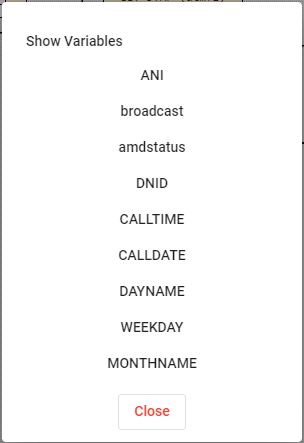
- Show variables: It shows the default variables in the routing script. Nothing can be done with them here. It also doesn't show added variables.

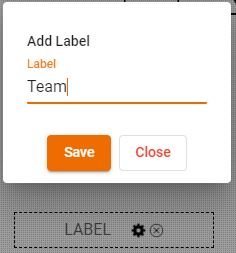
- Labels: It creates a label to possibly make some stuff more comprehensible in bigger routing scripts or other. It doesn't affect the cycle of the routing script.

- Condition: Most routing script start by one, but it can also be used anywhere else. A routing script can contain multiple of them, if it wishes to do so. It is basically an if statement to compare a variable to a value. The variables can be any default or added variables. The operators are =, >, >=, <, <=, != or LIKE. I.e. If DNID=9999.

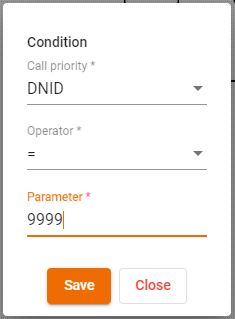
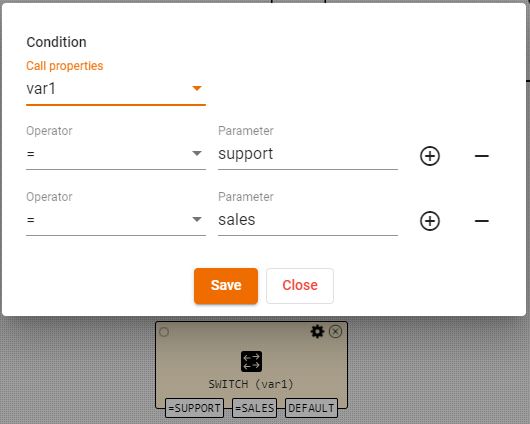
- Switch: It compares a variables to multiple possible values and acts accordingly. The variables can be any default or added variables. The operators are =, >, >=, <, <=, != or LIKE.

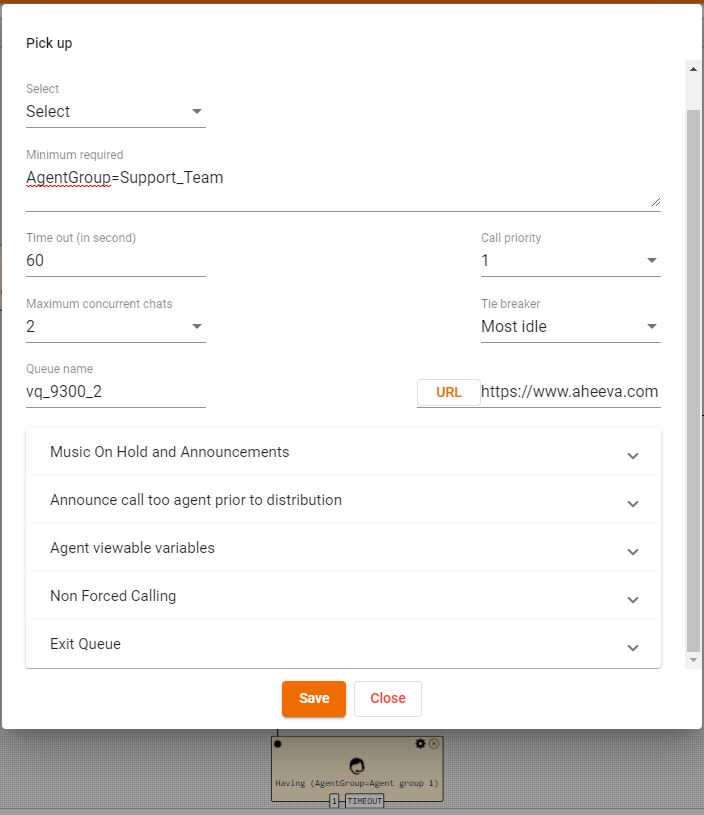
- Pick Up: This is where the call gets distributed to an agent. It can be configured with multiple options. One must select who can pick up the call, by selecting either a skill, a specific agent, an agent group or combination of all of them. It has a queue timeout, a call priority, a maximum concurrent chats amount, a tie breaker and a queue name to be filled in. All of the rest is optional and it contains the following options: A URL, a music on hold and announcement, a pre-announcement, an agent viewable variable option, a non-force option and an exit queue option. Most of them will be explained in a different article.

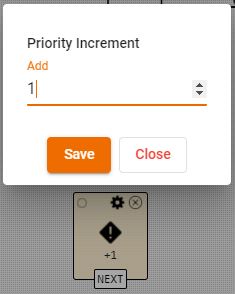
- Priority: It increases the priority of a call/chat once reached.

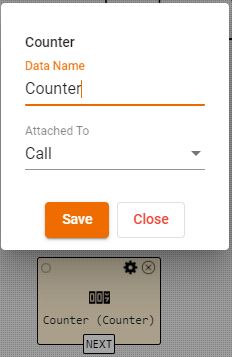
- Counter: It returns the number of calls or the number of time the routing script has been executed.

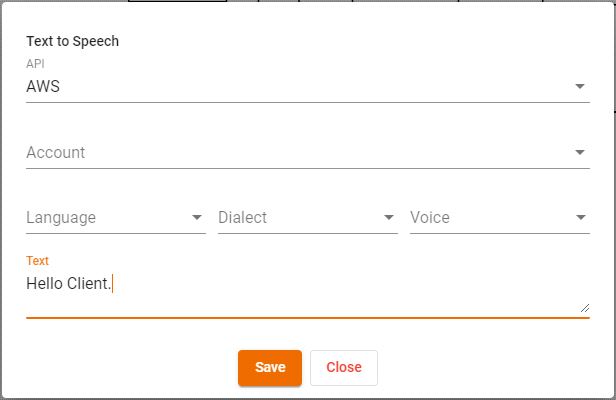
- Text To Speech: It requires an AWS account. One can then select the language, the dialect, the voice and the text that will be spoken.

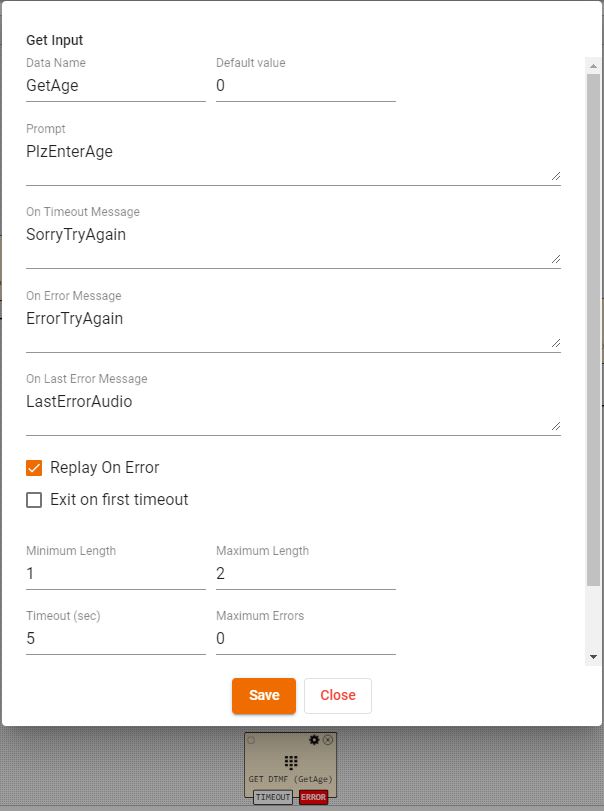
- Get Input: It asks the client a question and returns a result. The prompt, on timeout message, on error message and the on last error message are all audio files that can be selected from the list of uploaded files in the manager.

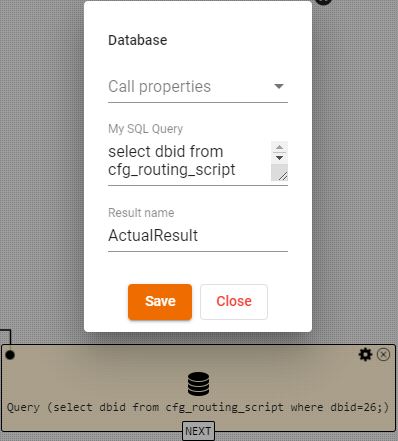
- Database: It makes a request to the database and it returns a result to be used somewhere else possibly.

- Calculator: It is used to make a simple calculation and return a value.

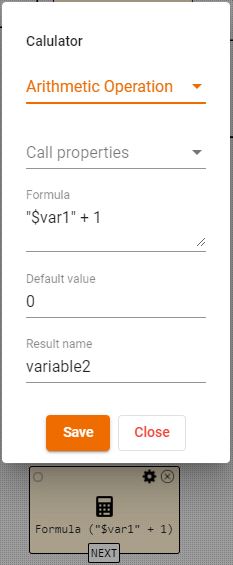
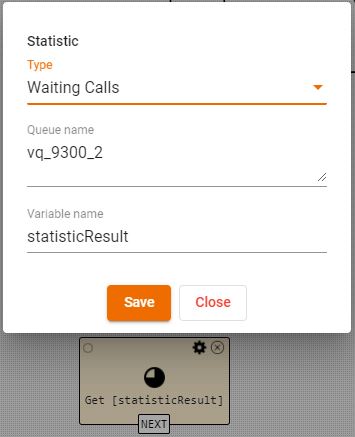
- Statistic: It uses pre-determined filters and it returns the result. More details can be found later on.

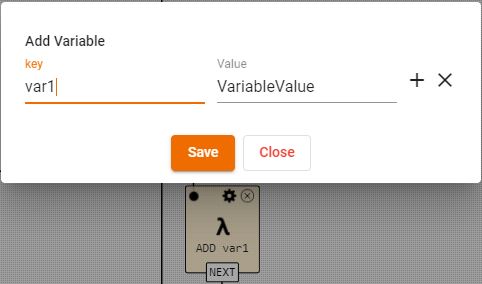
- Add Variable: It creates a variables and a value to be used somewhere else.

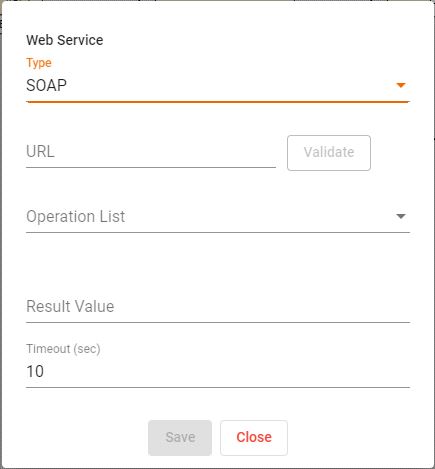
- Web Service: It makes a request online and it returns a result. The only option is SOAP for now.

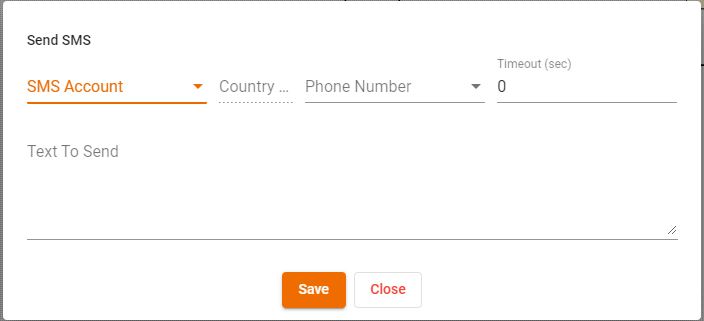
- Send SMS: One must add an SMS account into the manager and use the flag "For Use in IVR".

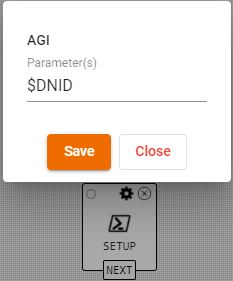
- AGI: More details to come.

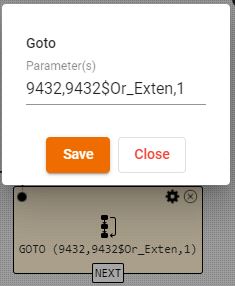
- Go To: It is used to often go from one routing script to another.

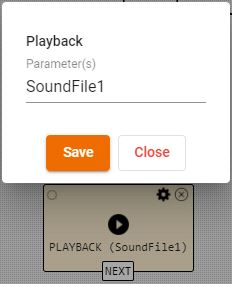
- Playback: It is used to play any uploaded files.

- Record: It is used to record a call. It gets replaced every time a new call is made and goes to that box.

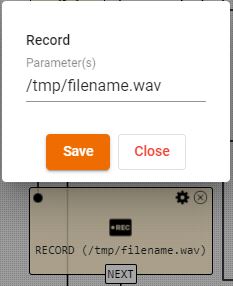
- Transfer: It is used to transfer the call to a specific and configured phone extension.

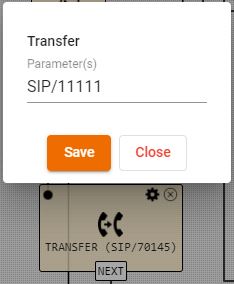
- Set Language: It is used to set the language of the routing script.

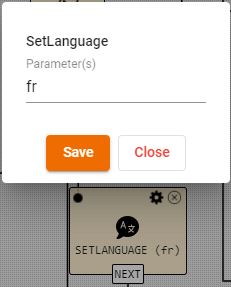
- Set: It is used to create a parameter that will be used in asterisk directly.

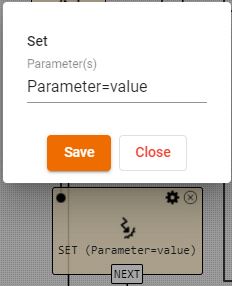
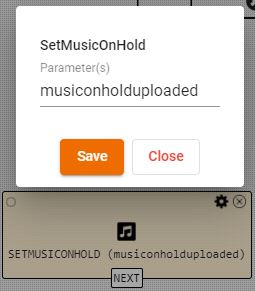
- Set Music on hold: It is used to set a different default music on hold.

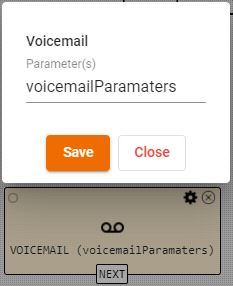
- VoiceMail: It is created to transfer the call to a voicemail.

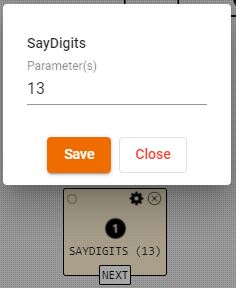
- Say digits: It is used to say digits.

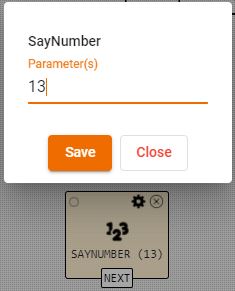
- Say Number: It is used to say a Number

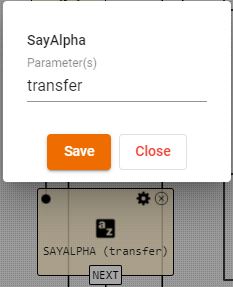
- Say Alpha: It is used to say anything.

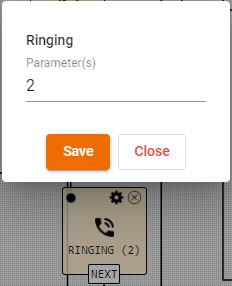
- Ringing: It is used to force a ringing of a few seconds.

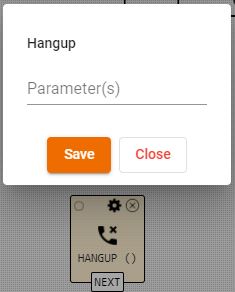
- Hangup: It is used to hang up a call, but it allows an extra step afterwards. Often followed by transfer or voicemail applications.

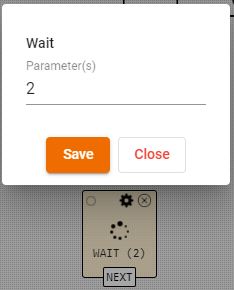
- Wait: It is used to force a wait for a few seconds.

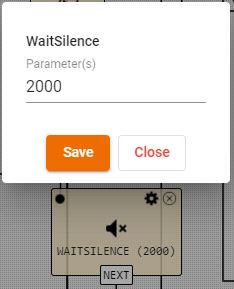
- Wait Silence: It is used to forced a wait for a few seconds that has no sound at all.

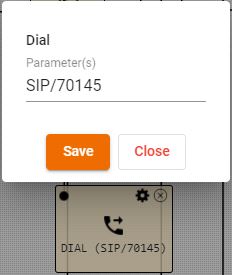
- Dial: It is used to dial a specific extension.

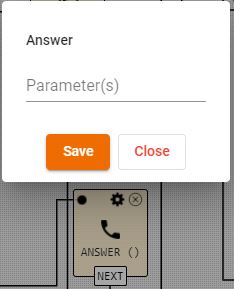
- Answer: It is used to answer the call from the client.

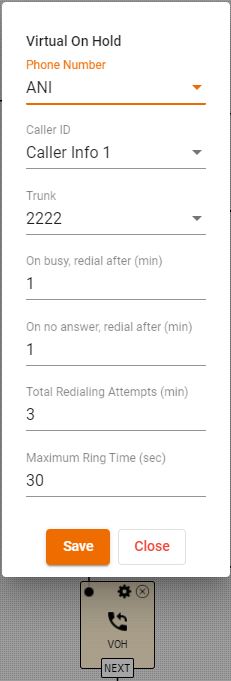
- Virtual on hold: It is used to callback a client once an agent is available without losing its position in the queue.

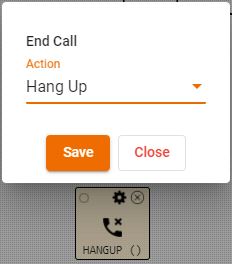
- End Call: It is used to hang up a call as an end step.

Chat (From top to bottom and then left to right): Most boxes are like the ones from the call routing script, so no pictures for them will be provided here, unless they didn't exist above.
- Save: On clicked, it validates part of the routing script, and if good, it prompts with the following box. One must enter a Name to save. By default, the priority is 1 and the active box is unchecked.
- Save As: Just like the save button, on clicked, it validates part of the routing script, and if good, it prompts with the following box. One must enter a Name to save. By default, the priority is 1 and the active box is unchecked.
- Clear: Clicking the clear button removes everything from the IVR.
- Delete: Clicking the button deletes the actual routing script completely. It comes with a confirmation message, just in case.
- Show variables: It shows the default variables in the routing script. Nothing can be done with them here. It also doesn't show added variables.
- Labels: It creates a label to possibly make some stuff more comprehensible in bigger routing scripts or other. It doesn't affect the cycle of the routing script.
- Condition: Most routing script start by one, but it can also be used anywhere else. A routing script can contain multiple of them, if it wishes to do so. It is basically an if statement to compare a variable to a value. The variables can be any default or added variables. The operators are =, >, >=, <, <=, != or LIKE. I.e. If chattype=sales.
- Switch: It compares a variables to multiple possible values and acts accordingly. The variables can be any default or added variables. The operators are =, >, >=, <, <=, != or LIKE.
- Pick Up: This is where the chat gets distributed to an agent. It can be configured with multiple options. One must select who can pick up the call, by selecting either a skill, a specific agent, an agent group or combination of all of them. It has a queue timeout, a call priority, a maximum concurrent chats amount, a tie breaker and a queue name to be filled in. All of the rest is optional and it contains the following options: A URL, an hold time and a current position in queue announcements, and an agent viewable variable option. Most of them will be explained in a different article.
- Priority: It increases the priority of a call/chat once reached.
- Counter: It returns the number of calls or the number of time the routing script has been executed.
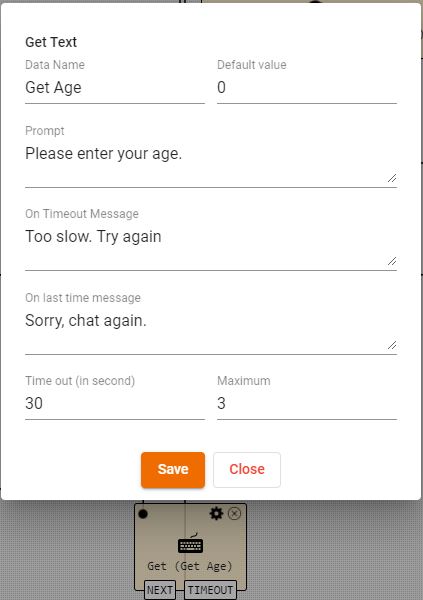
- Get Text: It asks the client a question and returns a result. The prompt, on timeout message, and the last on timeout message are all text based.

- Database: It makes a request to the database and it returns a result to be used somewhere else possibly.
- Calculator: It is used to make a simple calculation and return a value.
- Statistic: It uses pre-determined filters and it returns the result. More details can be found later on.
- Add Variable: It creates a variables and a value to be used somewhere else.
- Web Service: It makes a request online and it returns a result. The only option is SOAP for now.
- Send SMS: One must add an SMS account into the manager and use the flag "For Use in IVR".
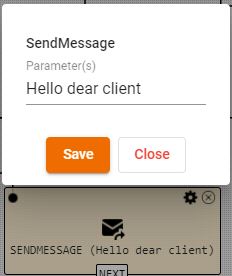
- Send Message: It is used to have the system send a message to a client.

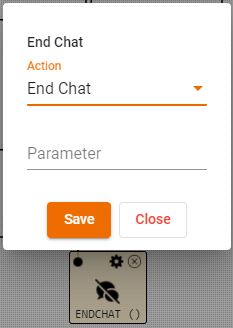
- End Chat: It is used to end the chat.

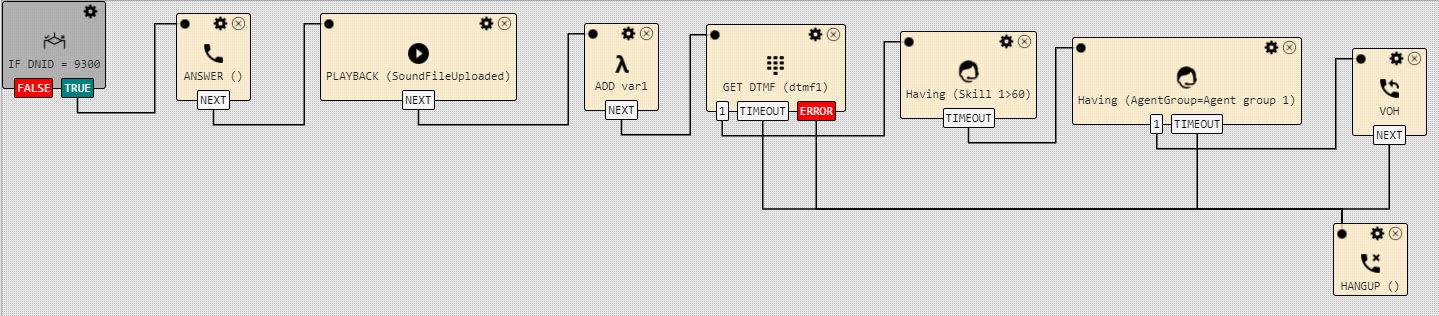
Final Overall Preview (how it may look):
Comments
0 comments
Please sign in to leave a comment.