
Just like the new Aheeva Manager, the new Inbound Routing Script uses the latest stable version of Angular, Angular 10, while also using a library known as Svg.js.
With the Aheevaccs 8 version, the Inbound Routing Script section has been completely redone; Both the look and its structure.
Now every application is separate. Meaning that, for example, the answer is now its own entity, while before we used to have something called an Execute box and it would possibly contain multiple applications at the same time.
The Call routing script is also on a different page from the Chat routing script.
How it looks:
1. To find the Calling List page, one must first login into its manager and enter one of its tenant: https://ip:9443/#
2. The page can be found by clicking this icon on the home's page.
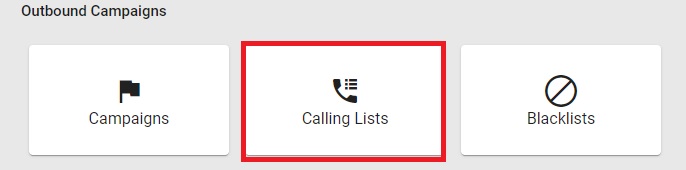
3. After opening the page, it will look like that. One is now able to create a new calling list, by clicking on the add button from the top-right corner of the section, or to edit an already existing calling list by clicking on it.

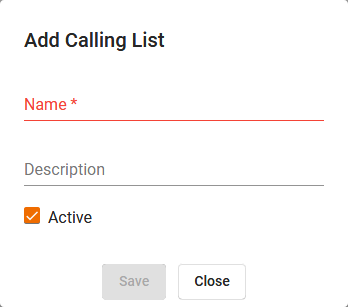
4. Once clicked, the page looks like the following:
4.1 Add
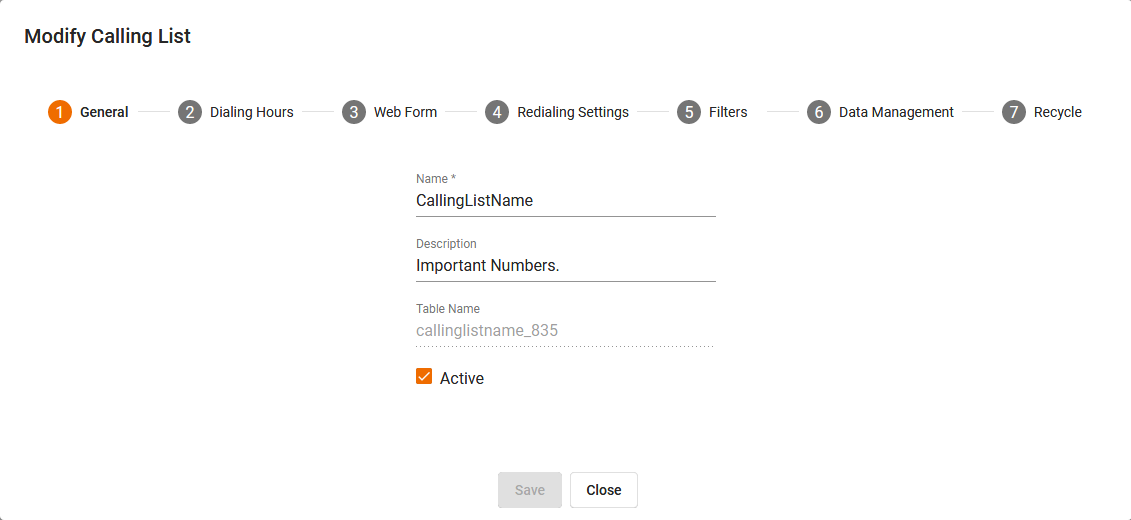
4.2 Edit
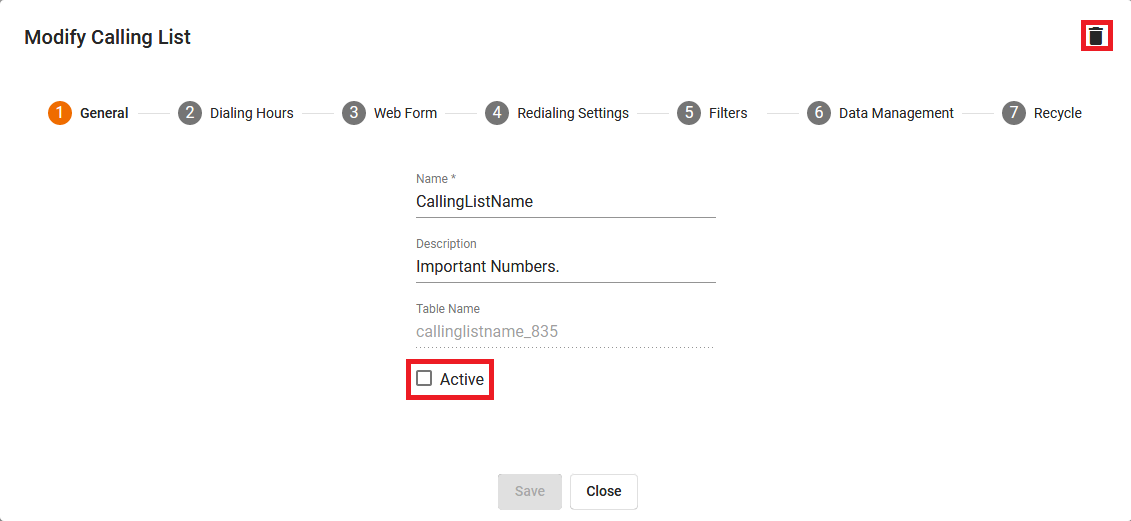
5. To Remove a calling list, one must first put the calling as inactive and then click on garbage icon on edit.
How it works:
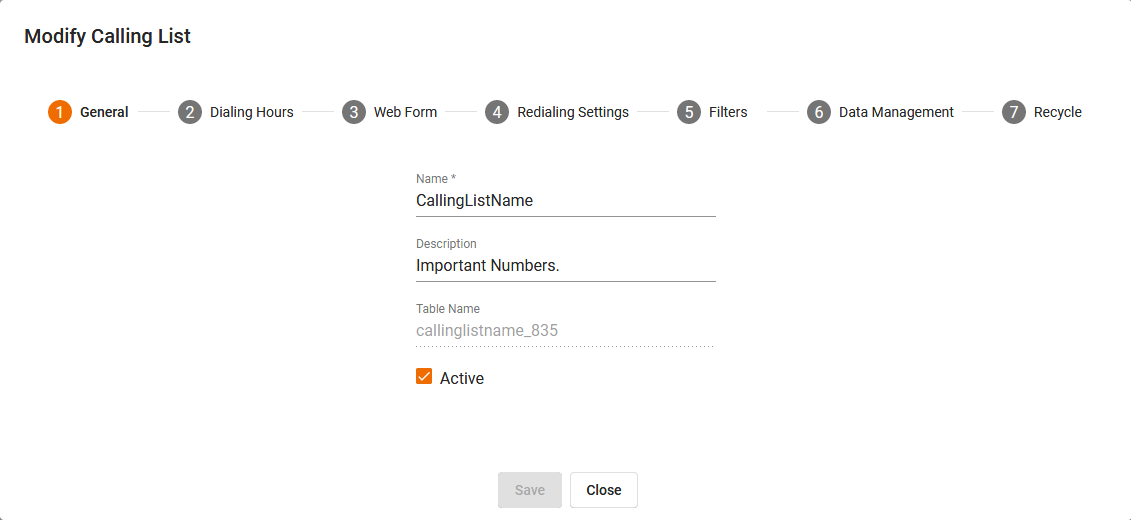
1. General Step. By default, the first page will only contain a name. One can then add/edit a description and put the calling calling active/inactive.
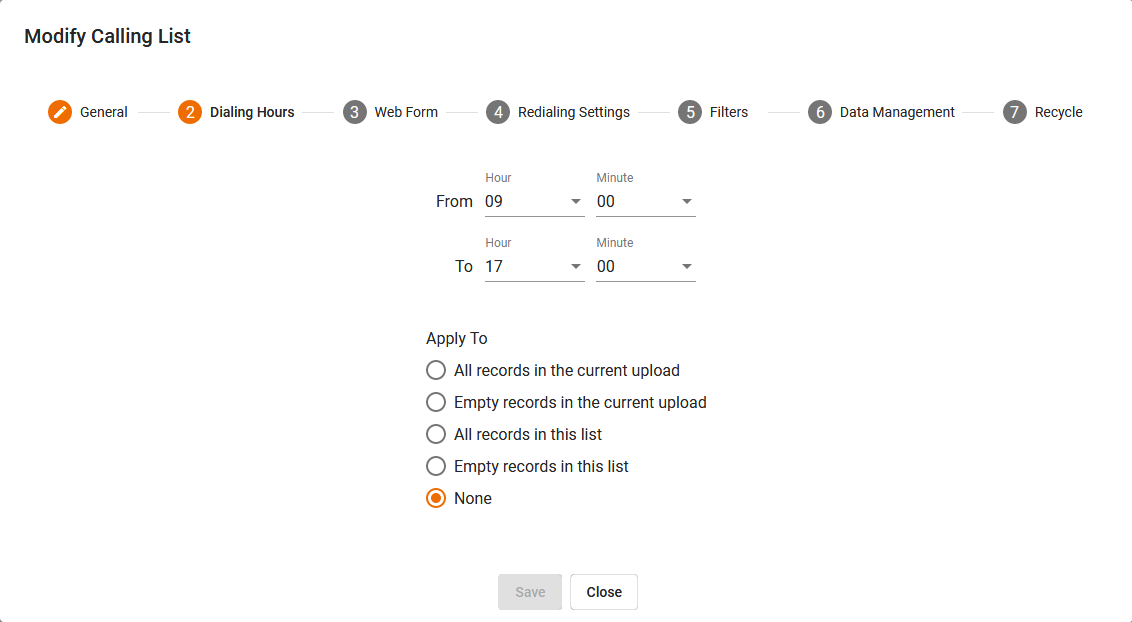
2. Dialing Hours Step. It is a direct update to the table to update the time of the daily_from and the time of the daily_to columns of the calling list tables. One needs to select one of the available and applicable options and then click on save on the calling list to make it happen. Whenever one clicks on saves, it takes and applies all applicable changes from all pages, not only the one presently selected. The current available options are: All record in the current upload, Empty records in the current upload, All records in this list, Empty records in this list and none. By default, the none option is always selected.
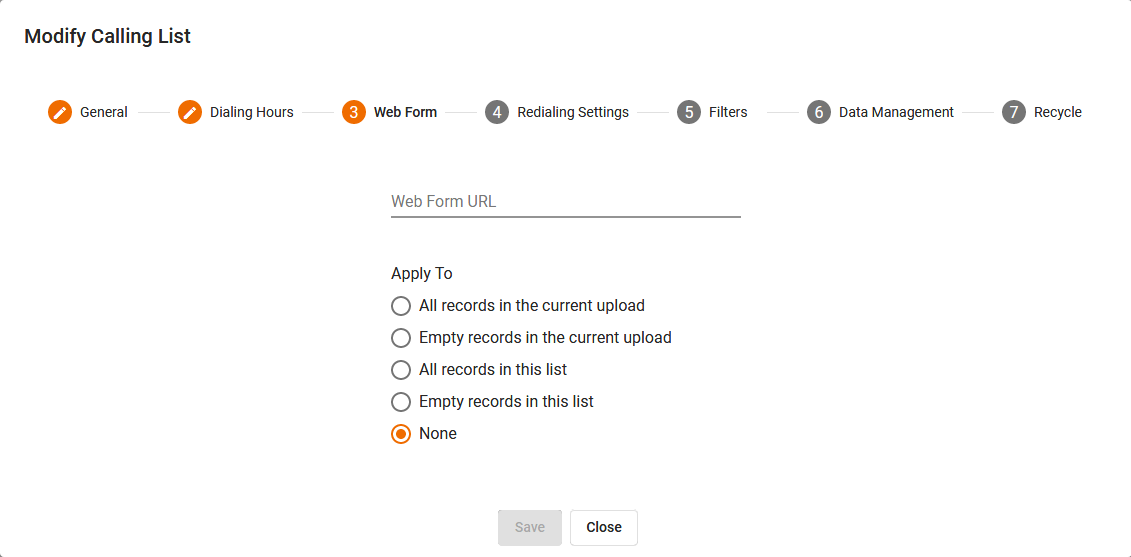
3. Web Form Step. It follows the same idea of the dialing hours and it has the same options of the dialing hours, however, it updates the column extraData instead of the main calling list table.
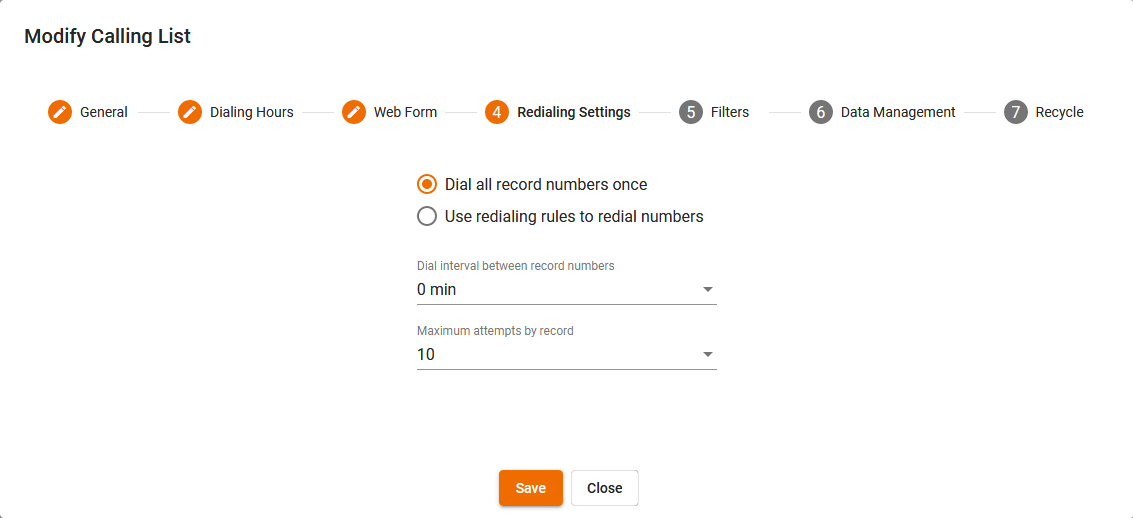
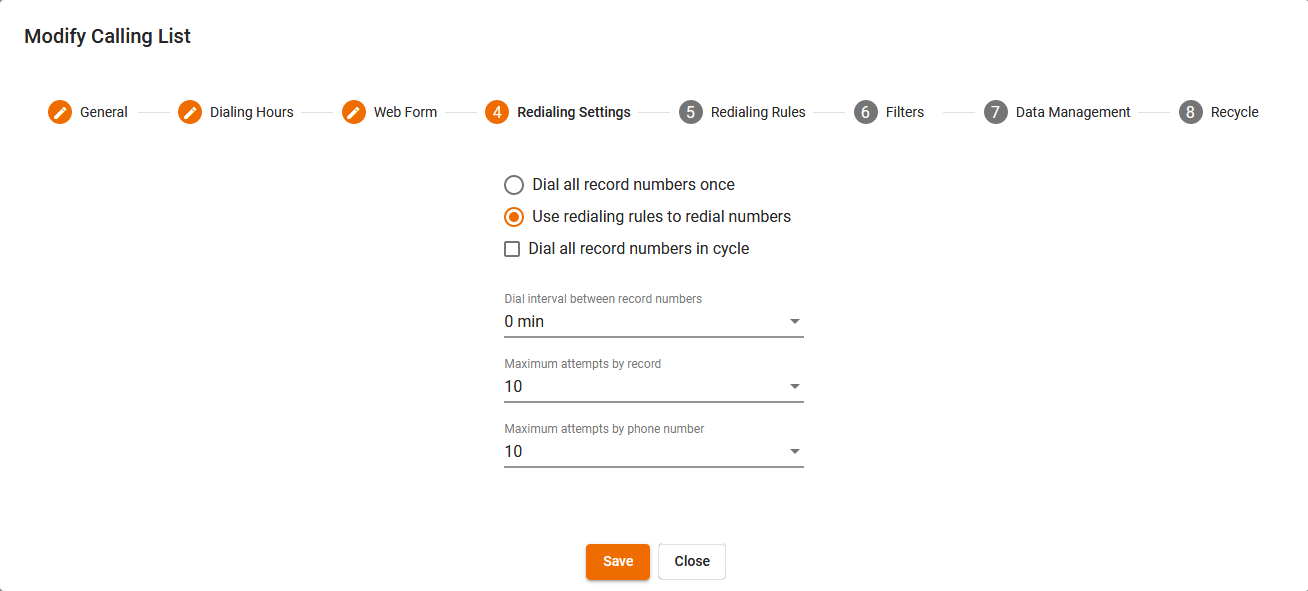
4. Redialing Settings Step. By default, it has the Dial all record numbers one selected and one can modify the Dial Interval between record numbers and the Maximum Attempts per record. If one selects the use redialing rules to redial numbers option, it opens up a few new different options and a new calling list section: The extra section is the Redialing Rules section and it will get covered in the next step and the extra options are the Dial all records numbers in cycle option and the Maximum attempts by phone number option.
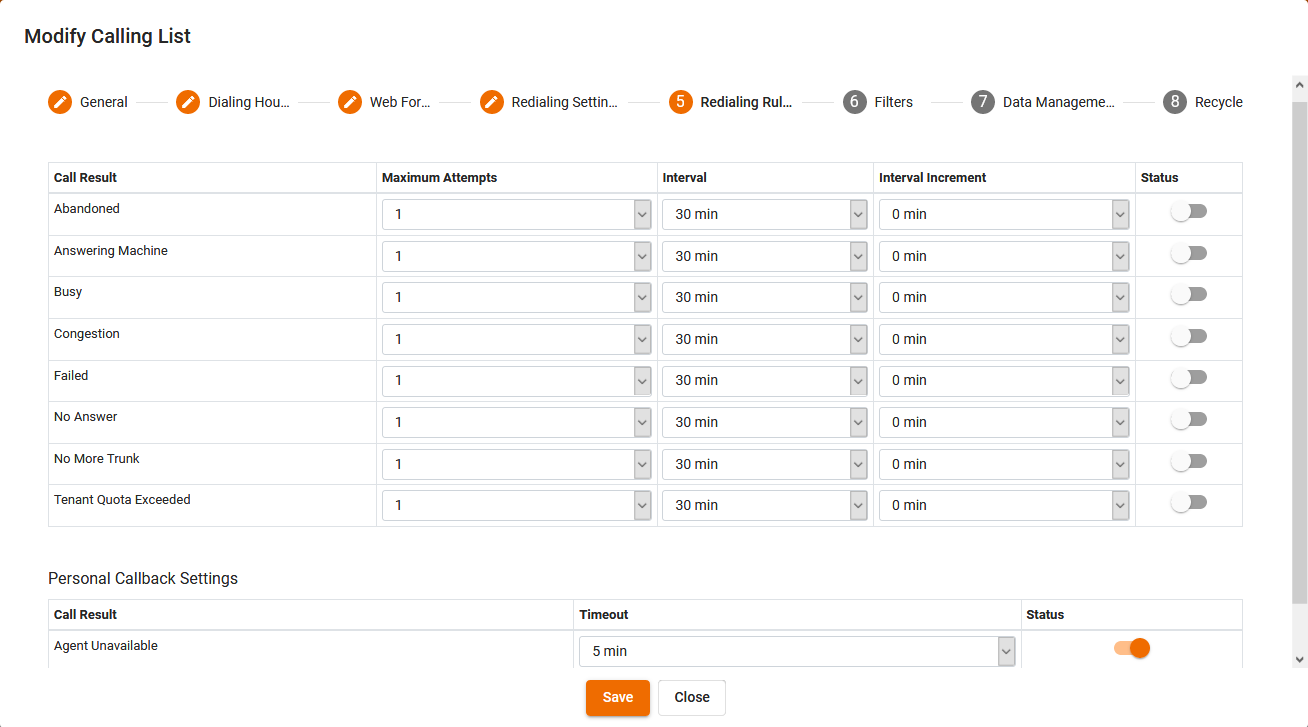
4.1. Redialing Rules Step. This section is to allow some numbers to get redialed, depending on their bad result. One can configure all of the following below.
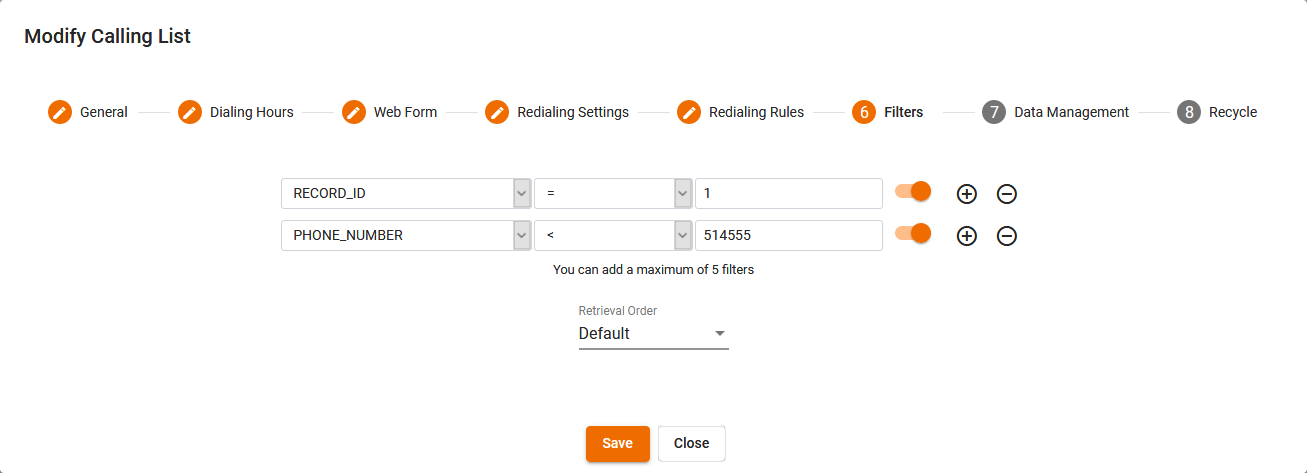
5. Filters Step. One can add up to 5 filters for a calling list. A filter can be applied on any field of the calling list table. Once a filter is applied, it will call only the phone numbers that take that filter into consideration. I.e. Record_ID > 9 will only call the numbers that have a record_id starting with 10 once the calling list gets loaded up and started in a campaign. The retrieval order can be either default or Random.
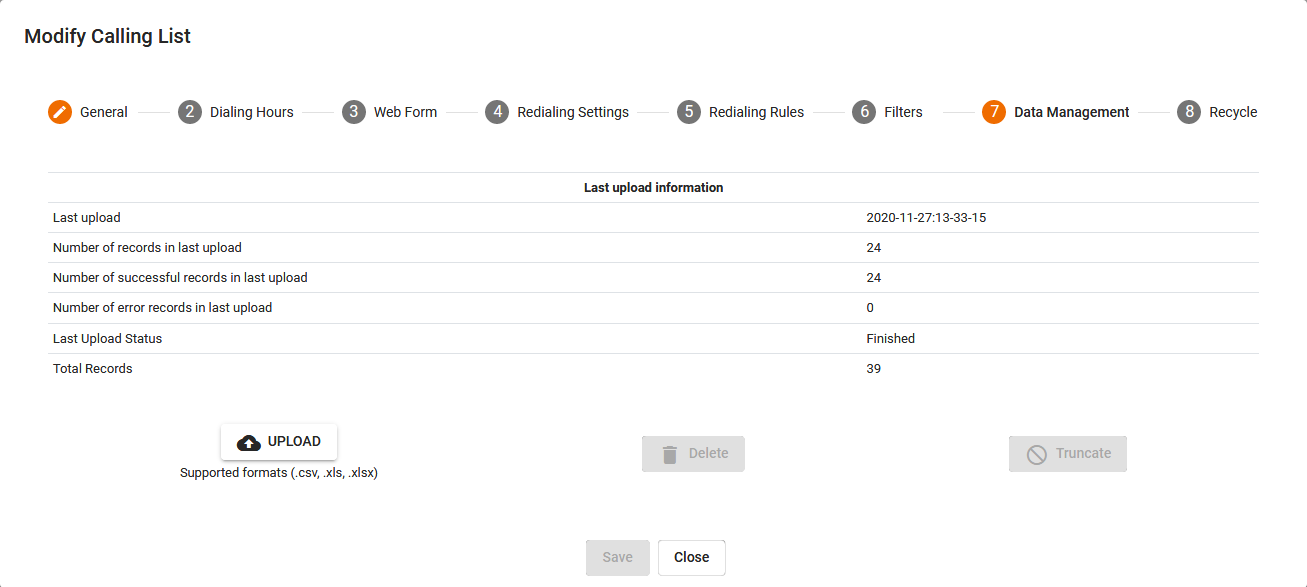
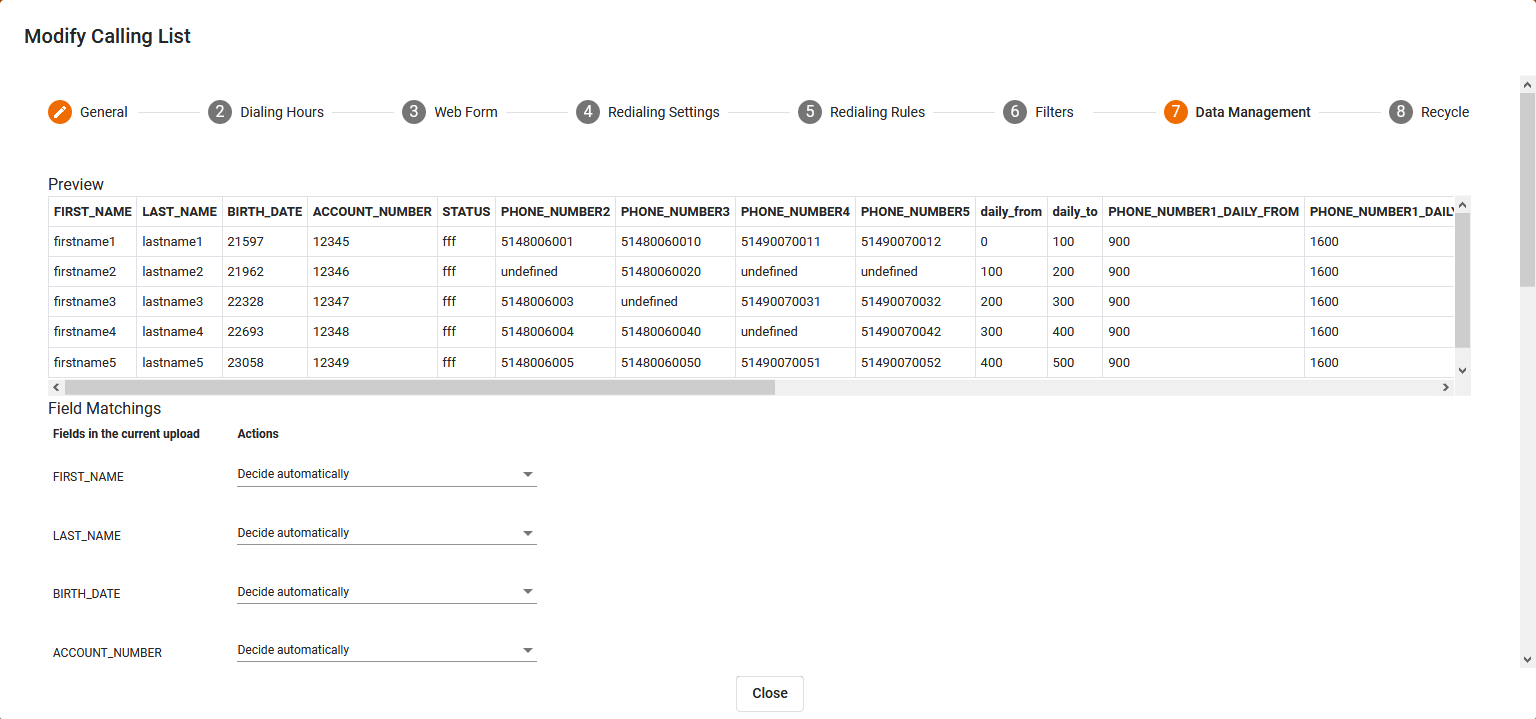
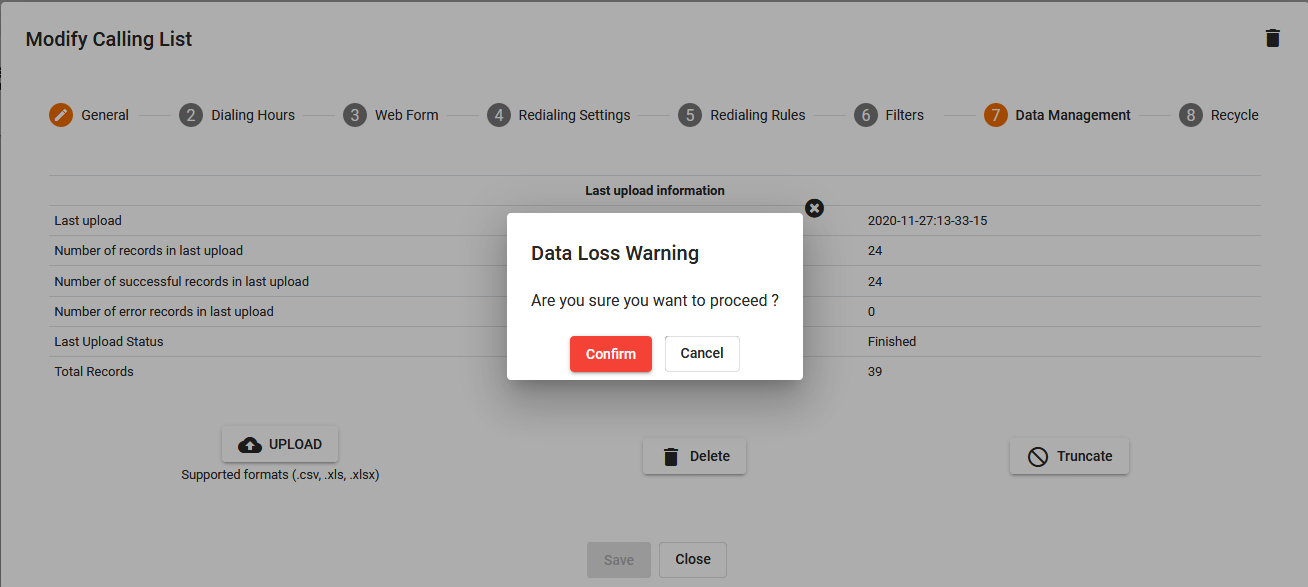
6. Data Management Step. This is where we upload a calling list into the table. It starts by clicking on the upload button and then selecting a calling list in either excel csv for xlsx formats from its computer. Once a list gets uploaded, it shows a preview of a few records and it leaves ones the choice to match the columns from the excel sheet to the existing columns. If there is no match selected, it creates a new column, if it doesn't find one automatically to match it, when not selected manually. One must click on the save and upload button to continue with the upload. Once clicked, its shows a progress bar under the total records row and shows the results of the upload. One doesn't have to leave the page open to finish the upload, it is done in the background. One can also add numbers multiple times to the same calling list. To either Truncate or Delete the list, the calling list must be inactive. Truncating removes all numbers from the list, while deleting, deletes the calling list completely. There is a warning sign before continuing for the truncate or the delete action.
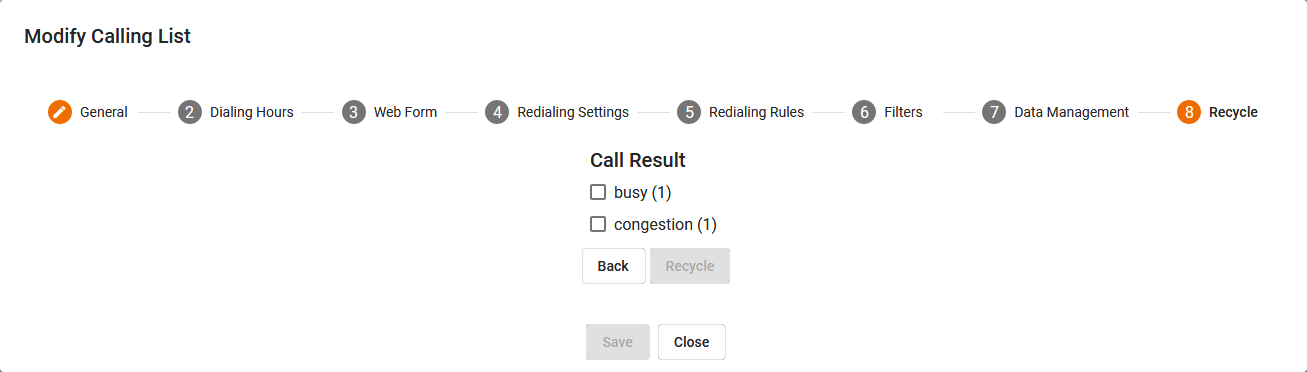
7. Recycle Step. One can recycle records that had a bad result or records that had a bad Refusal Reason Code. The records that had a bad Refusal Reason Code can be recycled at any time, while the records that had a bad results can only be recycled if the campaign containing the list (if any) is stopped and unloaded.
Comments
0 comments
Please sign in to leave a comment.