
Requirements:
- Aheevaccs version 8.2.0 or newer.
A new parameter is added to the config file of the manager (/etc/aheevaccs/manager/servletConfig.properties)
the parameter is called safeMode, if it is not added at all (default value) it will be considered false.
if safeMode=0: manager will be running as ususal
if safeMode =1: the following features will be disabled:
1-Report Scheduling will not be sent
2-Generate recording to Zendesk will not be run
3-Insert into recordings table will not be done
Once you restart your manager in safeMode=0 even the previous recording will be processed.
safeMode=1:
-
If you try scheduling a new report while safe mode, it will work.
-
The scheduled reports that were already created, but scheduled to be sent during that time, do not get sent to the users.
-
The recordings are still created in the /var/lib/aheevaccs/recordings/1/mp3/2021/04/08/ folder.
-
However, no record is added to the recording’s table from the mysql tenant database. So they cannot be found in the manager’s recordings page.
Going from safeMode=1 to safeMode=0:
-
It is possible to create new scheduled reports.
-
The calls that was were made while in safeMode=1 now show a record in the recording’s table from the aheevaccs_1 database.
-
They also appear in the manager’s recording’s page.
-
Already scheduled reports that were scheduled to be sent during safeMode=1 time, are not sent until their next valid scheduled time.
----------------------------------------------------------------------------------------------
NOTICE: This documentation is based on the documentation for Zendesk version 7. It should be mostly the same, but it is not up to date.
-----------------------------------------------------------------------------------------------
Starting with the Aheeva version 8.0, one can use Zendesk with our application.
To use the optional Click to Call, one requires version 8.0.
Basically, how it works:
With the application one can map Aheeva agents to their zendesk users.
For every call, one can decide to include extra data and recordings for every call.
A new ticket is created for every new customer.
And more...
For more information, please read the following:
Zendesk Integration
It allows communication between Zendesk and the AWA (version >=8.0); Meaning that an Agent connected to Zendesk will be automatically logged in to AheevaCCS AWA:
- Graphical Interface that allows setup of Zendesk Account as well as mapping AheevaCCS agents to Zendesk users.
- Each tenant can use a different Zendesk Account
- When adding an agent to the tenant - if auto creation is active - a user will be added automatically to Zendesk.
- At the end of the call - if upload recordings is enabled - the recording of the call will be available in Zendesk ticket as a voice comment
- For all type of calls - based on the phone number of the customer - the system will always associate the call to either a new ticket or already created one that is not yet solved, therefore the agent connected via Zendesk will be redirected to the selected ticket.
- Zendesk can be activated for a specific inbound queue, calling list records or agent groups for manual dial by appending crm=zendesk to the suitable URL.
Installation/Admin Guide
Prerequisites
- AheevaCCS installed and configured properly
- Zendesk account: You need admin access to your zendesk account
- Contact Aheeva Sales/Support Team in order to enable Zendesk on your installation
Zendesk Setup Guide
Generate an api token
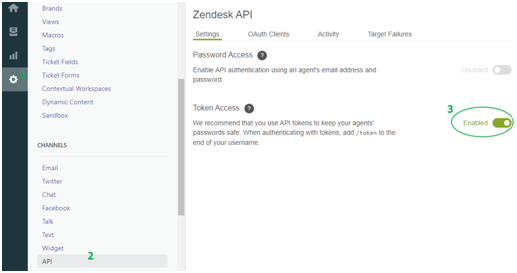
- From the home page, go to the setting pages.
- From the setting options, under Channel, select API.
- Enable the token access
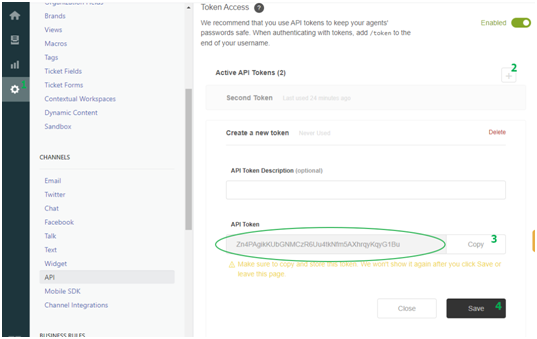
- Enter a token name and Generate the token (Copy it and save it somewhere safe, you will not be able to see it again. This token will be used when completing the configuration in the Agent Manager)
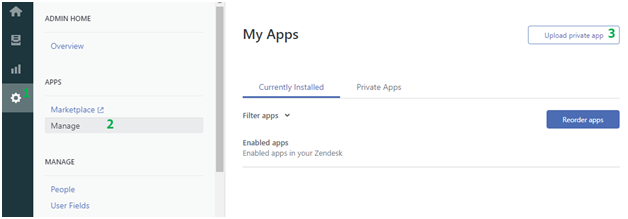
- From the home page, go to the setting pages.
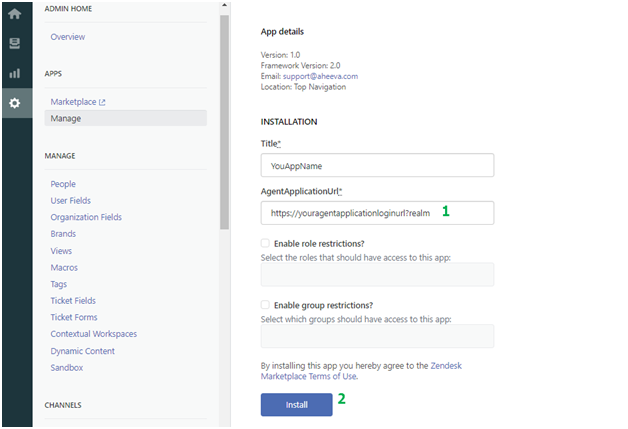
- From the setting options, under Apps, select Manage.
- Upload and Install this file: ZendeskApp.zip (Ask Sales/Support to get it).
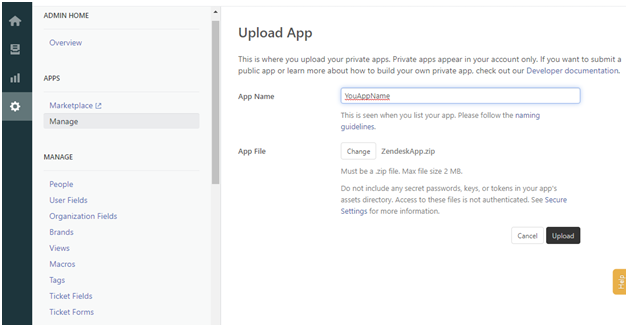
- Fill the application name and then upload
- Fill the AgentApplicationUrl (This should be the URL that you use in order to login an agent), and then click on "Install" in order to have the App available for all users. If you need more restriction you can do so by granting access to roles or user groups.
If you want to have the click to call feature from the ticket side bar you need to follow the below steps (Optional):
- [Optional for click to Call] Upload and Install the app zip file : ZendeskTicketDispatcherApp.Zip (Ask Sales/Support to get it)

- [Optional for click to Call] Fill the application name and then upload

- [Optional for click to Call] Fill the AgentApplicationUrl (This should be the URL that you use in order to login an agent), and then click on "Install" in order to have the App available for all users. If you need more restriction you can do so by granting access to roles or user groups.

AheevaCCS Setup Guide
Zendesk Integration can be activated as well as configured for any tenant. Therefore you can grant access to Zendesk for a specific tenant and revoke access for another one as well as configuring distinct Zendesk account for each tenant.
- Enable Zendesk Integration by editing the tenant configuration.
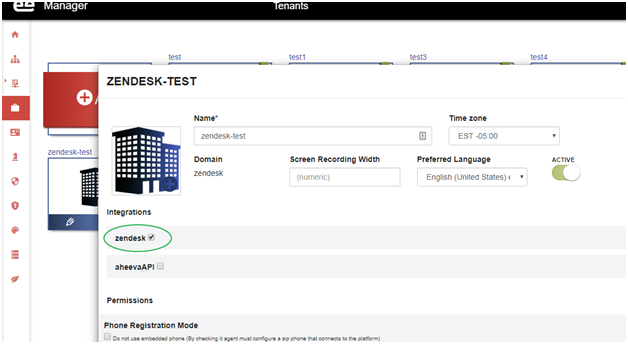
- Now having Zendesk enabled for the tenant all the remaining can be done inside the tenant scope
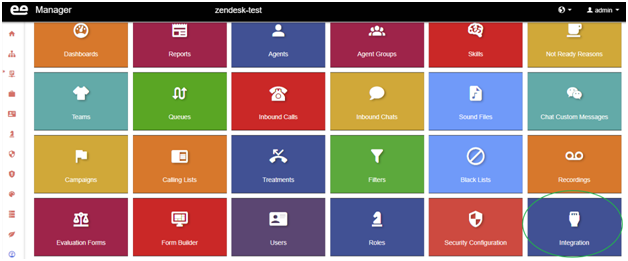
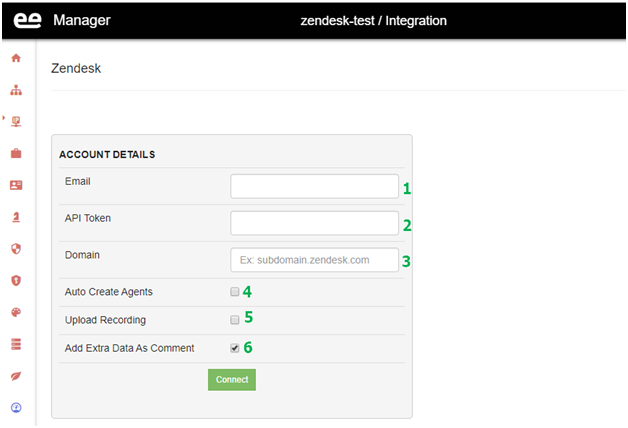
- Setup Zendesk Integration:
- Email: Email address used when generating the API token earlier inside Zendesk
- API Token: The Token previously generated from Zendesk
- Domain: The Zendesk domain you use to access your account (For example mycompany.zendesk.com)
- Auto Create Agents: By default it is not active. Once activated, on agent creation from the manager, a new user will be added to Zendesk. In case of failure to add to Zendesk, the agent will still be created in the manager but not linked to any user in Zendesk.
- Upload Recording: By default it is not active. Once activated, after each call a recording will be uploaded to Zendesk and displayed as voice comment in the ticket (Except a slight delay at least 15 seconds before being able to listen to the recording).
- Add Extra Data As Comment: By default it is active. When activated, right after ticket creation or selection for the call (currently inbound calls only), a new text comment will be added to the ticket displaying the variables that are selected in the PUM where the call was initially queued prior to distribution.
By clicking on "Connect" an implicit account validation will be done to make sure that the credentials provided are good and the setup will be permanently saved.
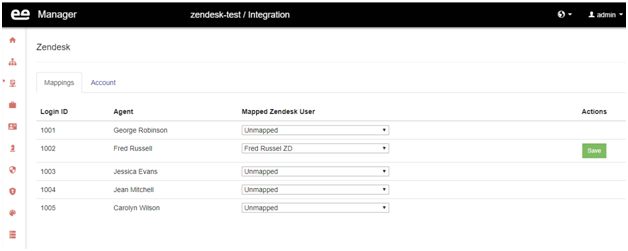
- Once the account is set, the mapping page will be enabled in order to match CCS agents to Zendesk users. In order to map an agent to a Zendesk user, all you have to do is to select the Zendesk user from the "Mapped Zendesk user" list and click on "Save":
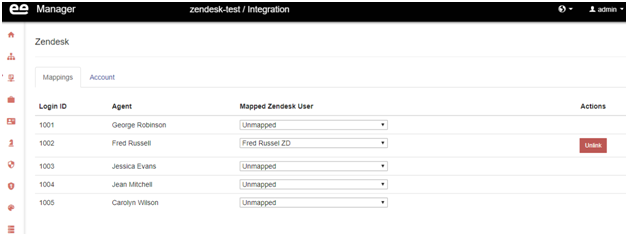
- Click on "Unlink" in order to cancel an already mapped Zendesk user
Ticket Selection
In order to activate ticket selection/creation - depending on the type of call - you should append "crm=zendesk" to the URL of either PickUpMethod where the call is queued, the manual dial URL in the Agent Group page or the URL of each record in the a calling list.
If the "crm=zendesk" is not present in the call URL, the system will assume that no need to activate Zendesk Integration for such call.
Once Zendesk Integration is activated for a specific call, it will follow the below flow:
- Try to identify the customer in Zendesk based on his/her phone number. If the customer is found, go to step 3, else go to step 2.
- Add new Zendesk customer linked to the provided phone number and go to step 4.
- If the customer already exists on Zendesk, select the latest unsolved ticket associated to that customer otherwise, if not found, go to step 4, else go to step 5.
- Create a new ticket and associate it to the customer
- At this step the ticket ID will be forwarded to the AWA which will trigger the ticket selection in Zendesk for the connected agent
User Access
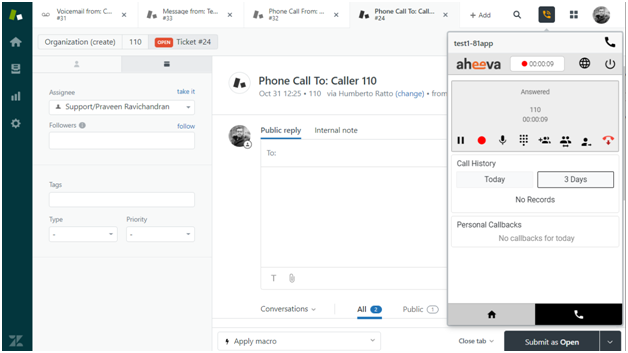
Once an AheevaCCS agent is mapped to a Zendesk account, he has only to login in Zendesk. Automatically the equivalent agent will be connected to AheevaCCS via the installed App on Zendesk.
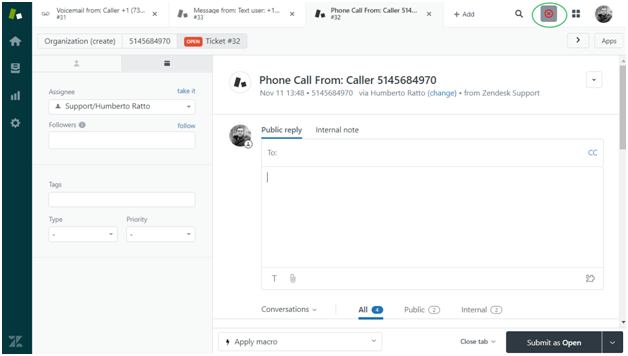
Changing the agent status to Ready:
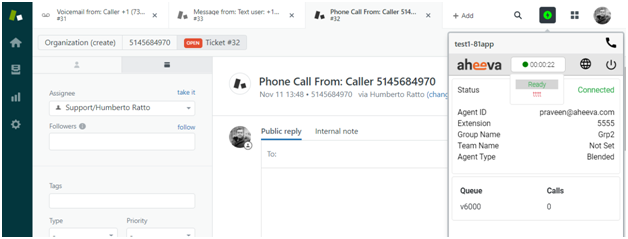
Agent On Call (Automatically the agent panel will be displayed, but agent still can hide/display it at anytime during the call):
Comments
0 comments
Please sign in to leave a comment.